> ## Documentation Index
> Fetch the complete documentation index at: https://docs.vatel.ai/llms.txt
> Use this file to discover all available pages before exploring further.
# Prompt engineering
> Writing effective prompts for your agents
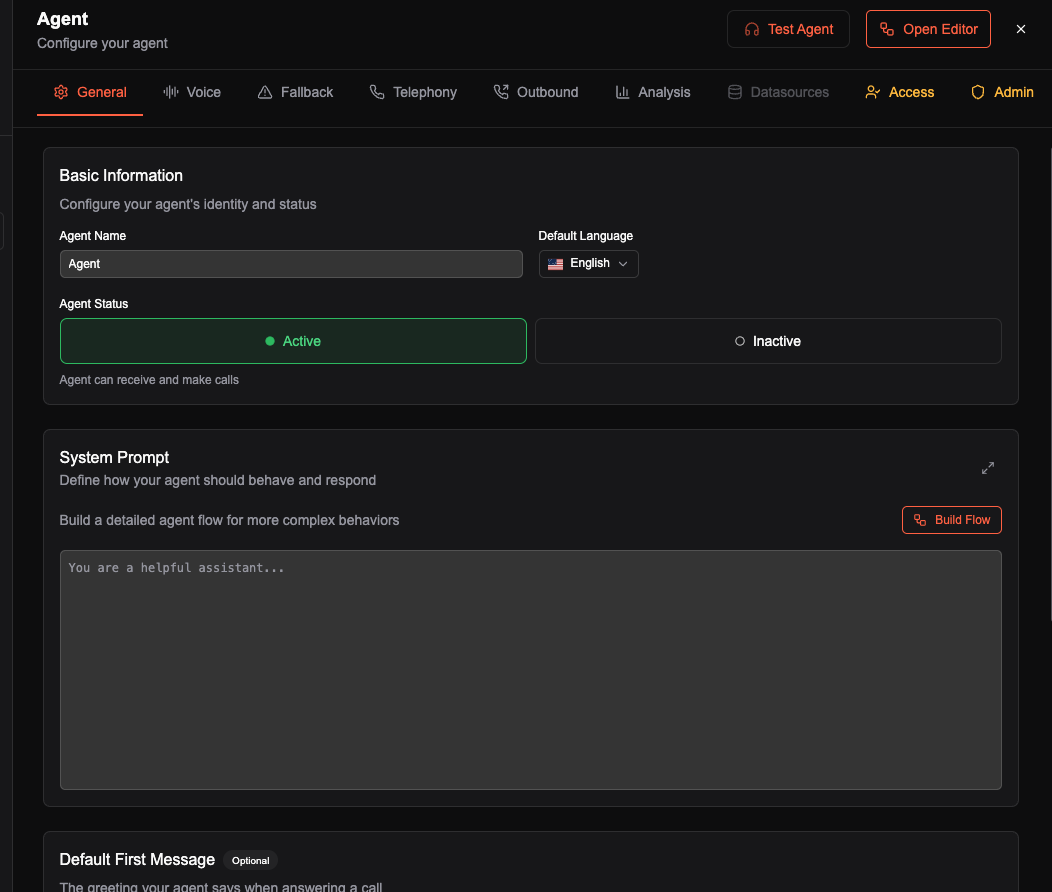
What you put in the context box is what the agent knows. If something's missing or fuzzy there, you'll hear it in tests, so cover the questions customers actually ask and keep the wording clear.
Stick to what the agent needs. For big docs or databases, use Knowledge Bases instead of pasting everything into context.
## When a single context is enough
For most agents (Q\&A, scripted flows, straightforward routing), one context block is fine. No need to overcomplicate it.
Write context in **Markdown (.md)** when you can. [Basic syntax](https://www.markdownguide.com/basic-syntax/) is enough.
## What works
Short, dense text beats long paragraphs. The agent does better with fewer words and more structure: headings like "Services", "Cancellation", "Contact" help it find the right answer. Stick to plain sentences and facts; skip filler and repetition.
## Pulling context from a site
If you need to turn a webpage into context, use any LLM (ChatGPT, Claude, etc.) and a prompt along these lines, swapping in your URL:
```markdown theme={null}
Extract the useful, factual content from: [INSERT URL HERE].
Output in Markdown with clear headings. Include: company/product overview, pricing if shown, contact info, FAQ or key details, and any policies (returns, support). Keep it under ~500 words, bullets and short sentences. No marketing copy, code, or HTML.
```
Paste the output into your agent's context.
 When you are ready, we can move on to agent editor.