> ## Documentation Index
> Fetch the complete documentation index at: https://docs.vatel.ai/llms.txt
> Use this file to discover all available pages before exploring further.
# Function Nodes
> Nodes in the agent editor that become tools
A **function node** is a node in the [Agent Editor](/configure/agent-editor) that performs an action: integrations (e.g. email, CRM), API calls, or other external behavior. When you add a function node to the conversation flow, it is automatically turned into a **tool** the agent can call. The agent sees the tool’s name, description, and parameters; you can preview that in the editor.
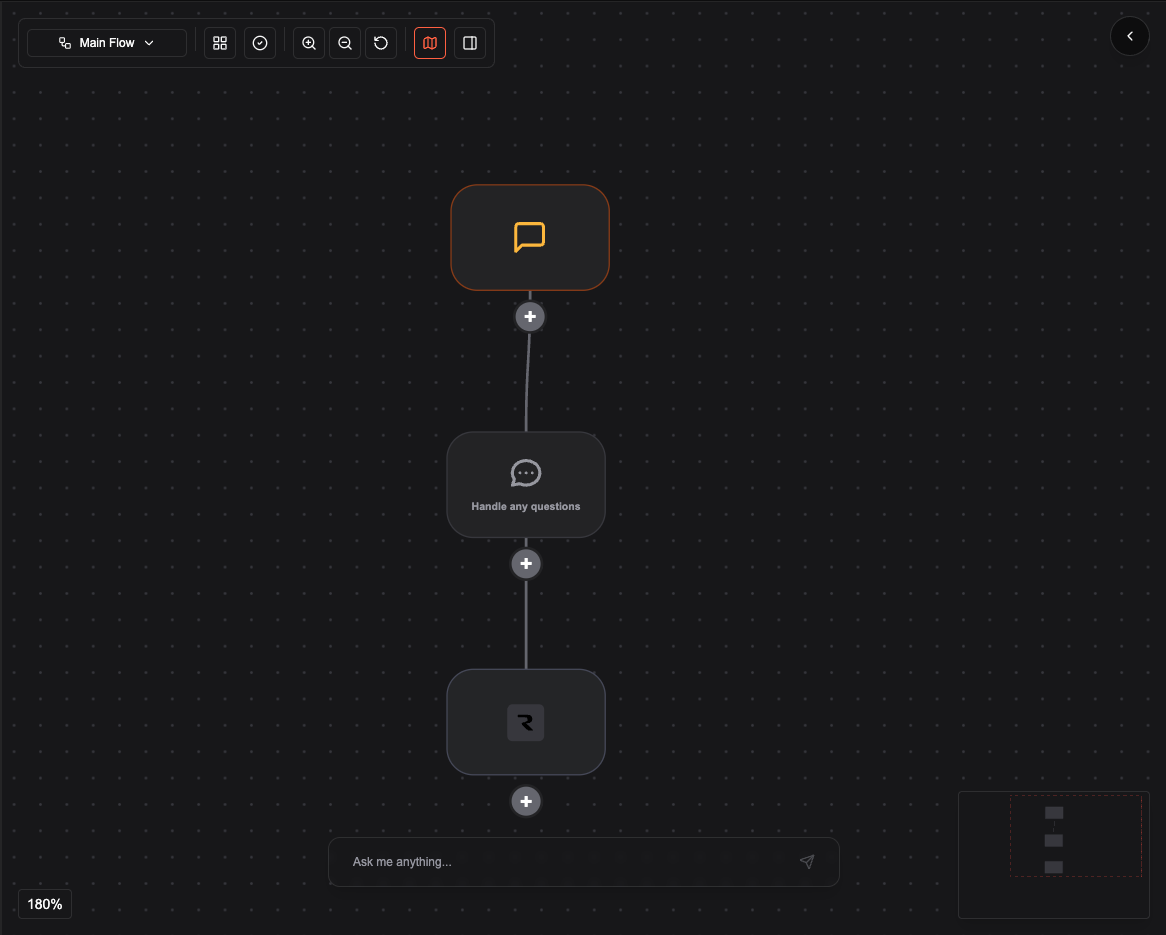
This walkthrough uses a simple graph: a first message, a conversation, and a Resend email node. The email node becomes a tool named **Book meeting**.
## Step 1: Build the graph
Start with a minimal conversation flow and add the integration node.
1. Add a **First message** node (e.g. welcome and ask how you can help).
2. Connect a **Conversation** node for the main dialogue.
3. Add a **Resend email** integration node after the conversation (e.g. to send a meeting confirmation).
The graph looks like: **First message → Conversation → Resend email node**.
 ## Step 2: Name the tool (Book meeting)
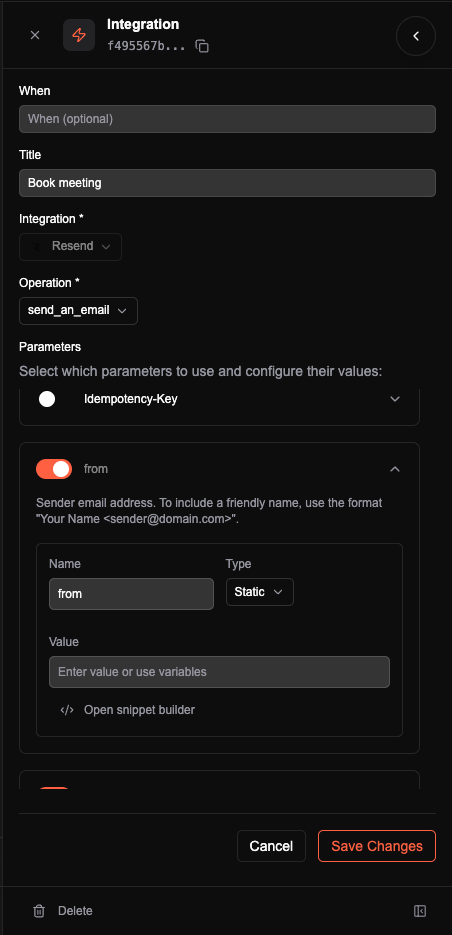
Configure the Resend email node with the sender, recipients, subject, and body. Set the node’s **name** (or tool label) to **Book meeting**. That name is what the agent sees as the tool name, e.g. `book_meeting` or "Book meeting", so the agent can offer to book a meeting and then call this tool to send the email.
## Step 2: Name the tool (Book meeting)
Configure the Resend email node with the sender, recipients, subject, and body. Set the node’s **name** (or tool label) to **Book meeting**. That name is what the agent sees as the tool name, e.g. `book_meeting` or "Book meeting", so the agent can offer to book a meeting and then call this tool to send the email.
 ## Step 3: Preview the tool in the Agent Editor
Every function node in the conversation graph becomes a tool. In the Agent Editor you can **preview** the tools generated from your graph. That preview shows exactly what the agent sees: tool name (e.g. Book meeting), description, and parameters. Use it to confirm the agent has the right capability and to tune names and descriptions for better behavior.
## Step 3: Preview the tool in the Agent Editor
Every function node in the conversation graph becomes a tool. In the Agent Editor you can **preview** the tools generated from your graph. That preview shows exactly what the agent sees: tool name (e.g. Book meeting), description, and parameters. Use it to confirm the agent has the right capability and to tune names and descriptions for better behavior.
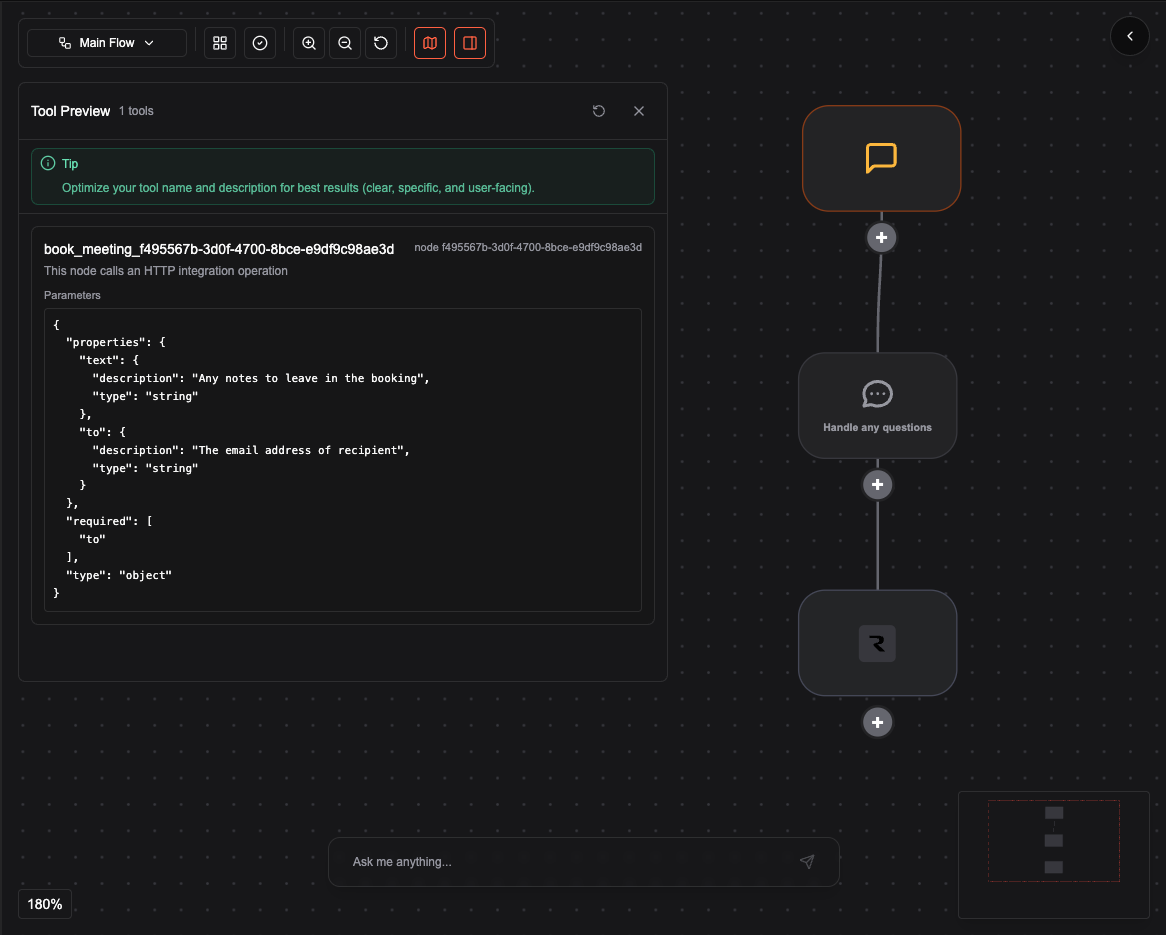 Once the graph is saved and the agent is published, the **Book meeting** tool is available during the conversation: the agent can invoke it when the user wants to book a meeting, and the Resend email node runs to send the confirmation.