> ## Documentation Index
> Fetch the complete documentation index at: https://docs.vatel.ai/llms.txt
> Use this file to discover all available pages before exploring further.
# HubSpot CRM API
> HubSpot CRM contacts, deals, and companies
The **HubSpot CRM API** integration lets your agents access and manage contacts, deals, companies, and activities in HubSpot CRM.
## Prerequisites
* A **HubSpot account** - [Sign up](https://www.hubspot.com)
* A **Vatel AI organization** and at least **one agent**
## Configuration
### Step 1: Get a Service Key from HubSpot
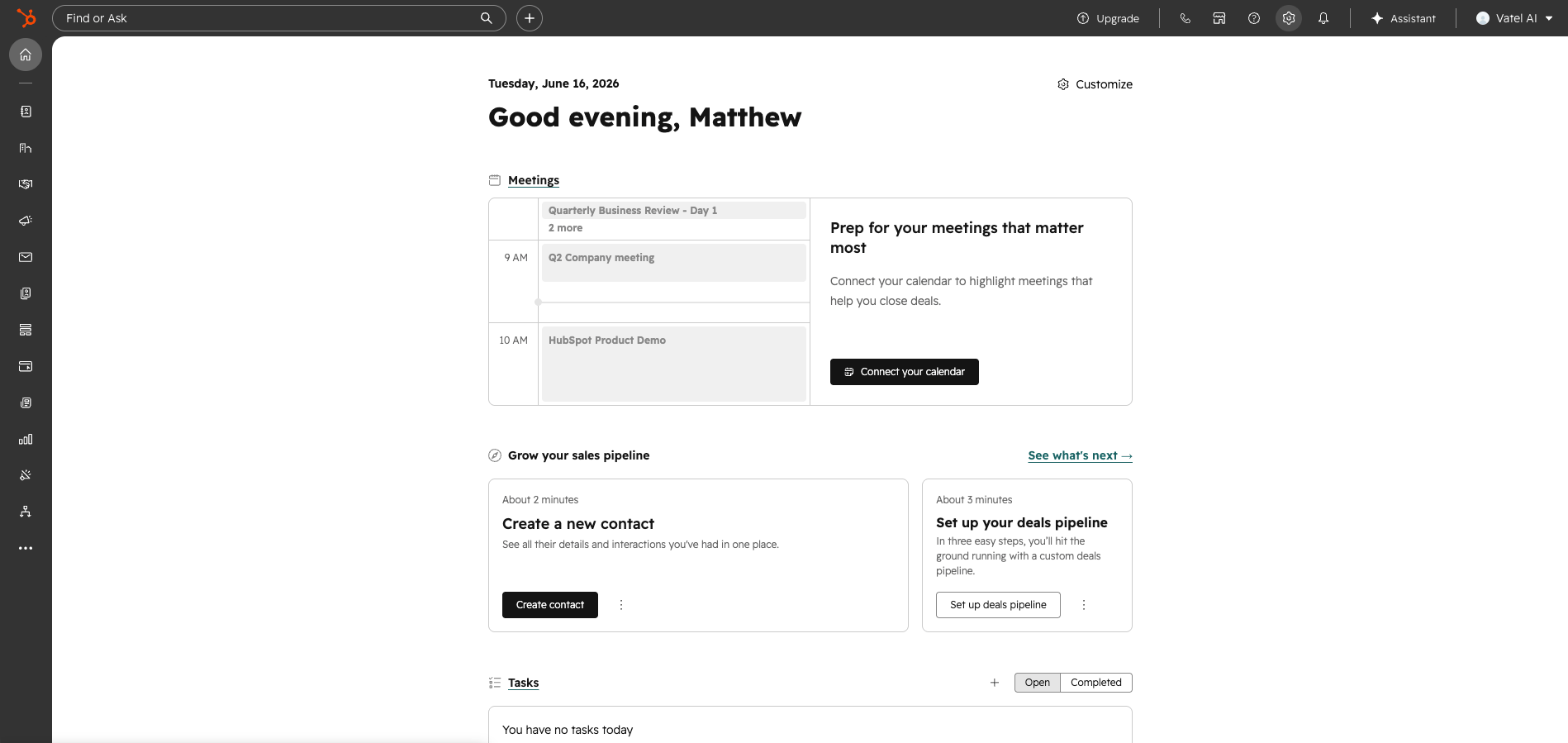
1. In HubSpot, click the **gear icon** in the top-right to open Settings.
2. In the left sidebar, click **Integrations** > **Service Keys**.
3. Click **Create service key**, give it a name, and select the appropriate scopes for your use case.
4. Once created, click **Copy** to copy the key.
 ### Step 2: Connect the integration in Vatel
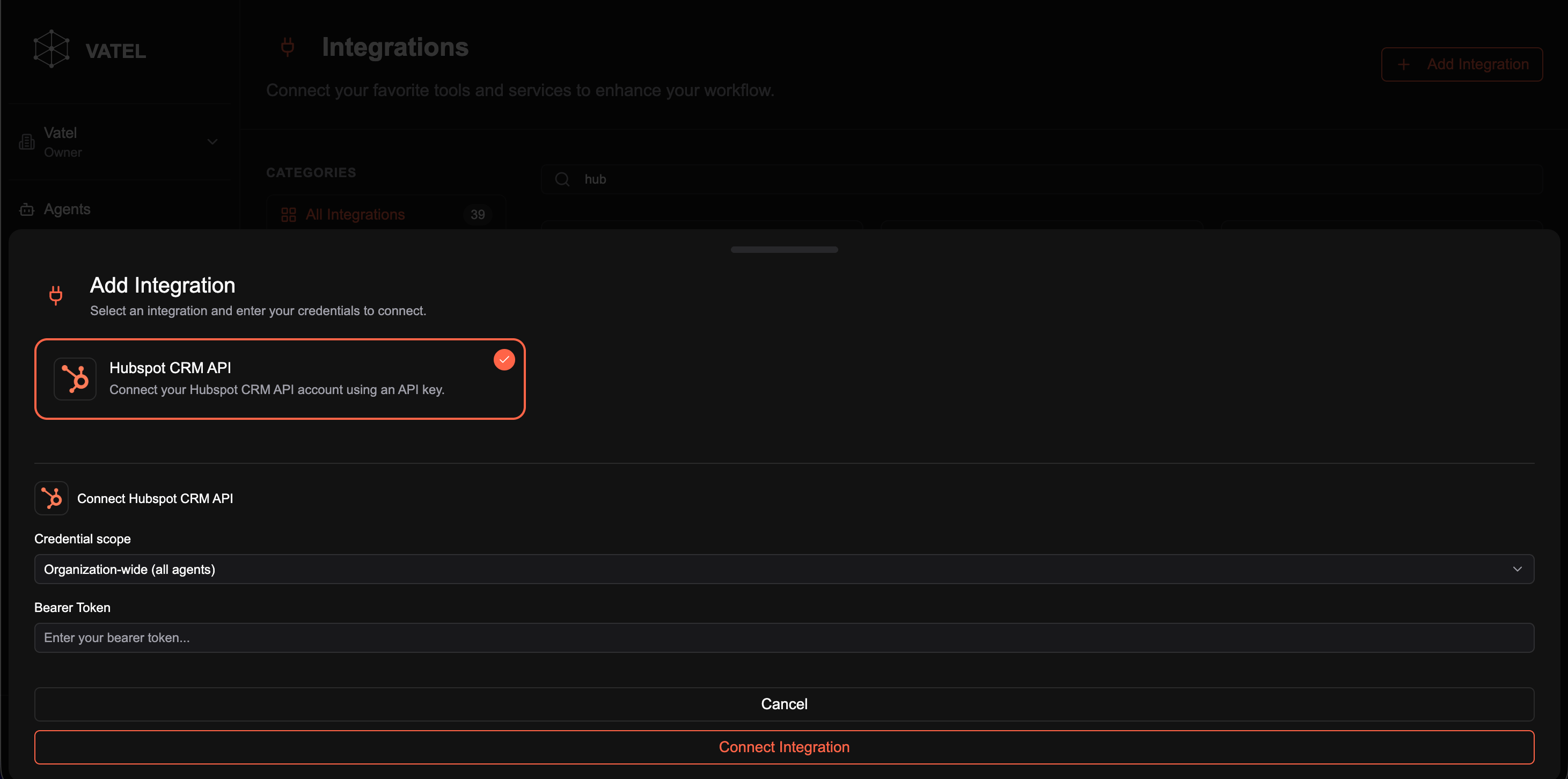
1. In the Vatel sidebar, click **Integrations**.
2. Click **Add Integration** in the top-right.
3. Select **HubSpot CRM API**.
4. Set **Credential scope** to **Organization-wide (all agents)** or restrict it as needed.
5. Paste your copied key into the **Bearer Token** field.
6. Click **Connect Integration**.
### Step 2: Connect the integration in Vatel
1. In the Vatel sidebar, click **Integrations**.
2. Click **Add Integration** in the top-right.
3. Select **HubSpot CRM API**.
4. Set **Credential scope** to **Organization-wide (all agents)** or restrict it as needed.
5. Paste your copied key into the **Bearer Token** field.
6. Click **Connect Integration**.
 ### Step 3: Use the integration in your agent graph
1. Open an agent and go to its graph editor.
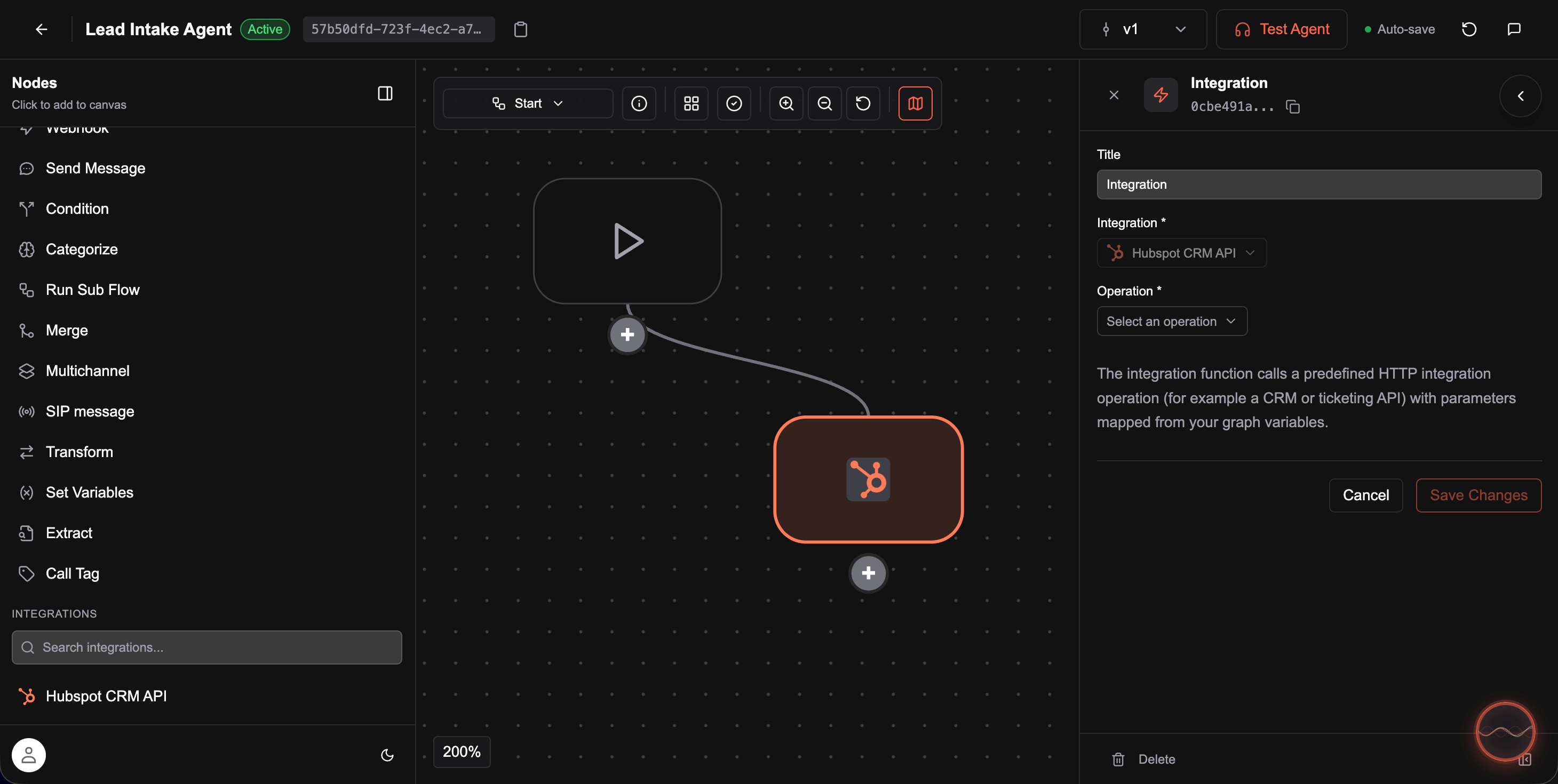
2. In the left sidebar under **Integrations**, you will see **HubSpot CRM API** listed. Click it to add it as a node.
3. In the node panel that opens on the right, give the node a **Title**, then select an **Operation** from the dropdown (e.g. create contact, get deal, update company).
4. Fill in any relevant field values or map them from graph variables.
5. Click **Save Changes**.
6. Start a call to test the node in your agent flow.
### Step 3: Use the integration in your agent graph
1. Open an agent and go to its graph editor.
2. In the left sidebar under **Integrations**, you will see **HubSpot CRM API** listed. Click it to add it as a node.
3. In the node panel that opens on the right, give the node a **Title**, then select an **Operation** from the dropdown (e.g. create contact, get deal, update company).
4. Fill in any relevant field values or map them from graph variables.
5. Click **Save Changes**.
6. Start a call to test the node in your agent flow.