> ## Documentation Index
> Fetch the complete documentation index at: https://docs.vatel.ai/llms.txt
> Use this file to discover all available pages before exploring further.
# Chat Bot
> Connect Cekura to a Vatel agent over WebSocket to run chat evaluations.
**Cekura** drives text-based conversations against your **Vatel AI** agent. You export a WebSocket URL and session secret from the agent’s **Testing** tab, enter them in Cekura, then run an evaluation and review the outcome in Cekura’s results view.
**Chat testing** exercises the same agent logic you rely on in production, including prompts, branching, **tool calls**, and other “brain” behavior, over a **text** session. You avoid the **cost and setup of full voice** (carriers, minutes, STT/TTS) while still validating how the agent thinks and acts.
## 1. Open Testing on the agent in Vatel
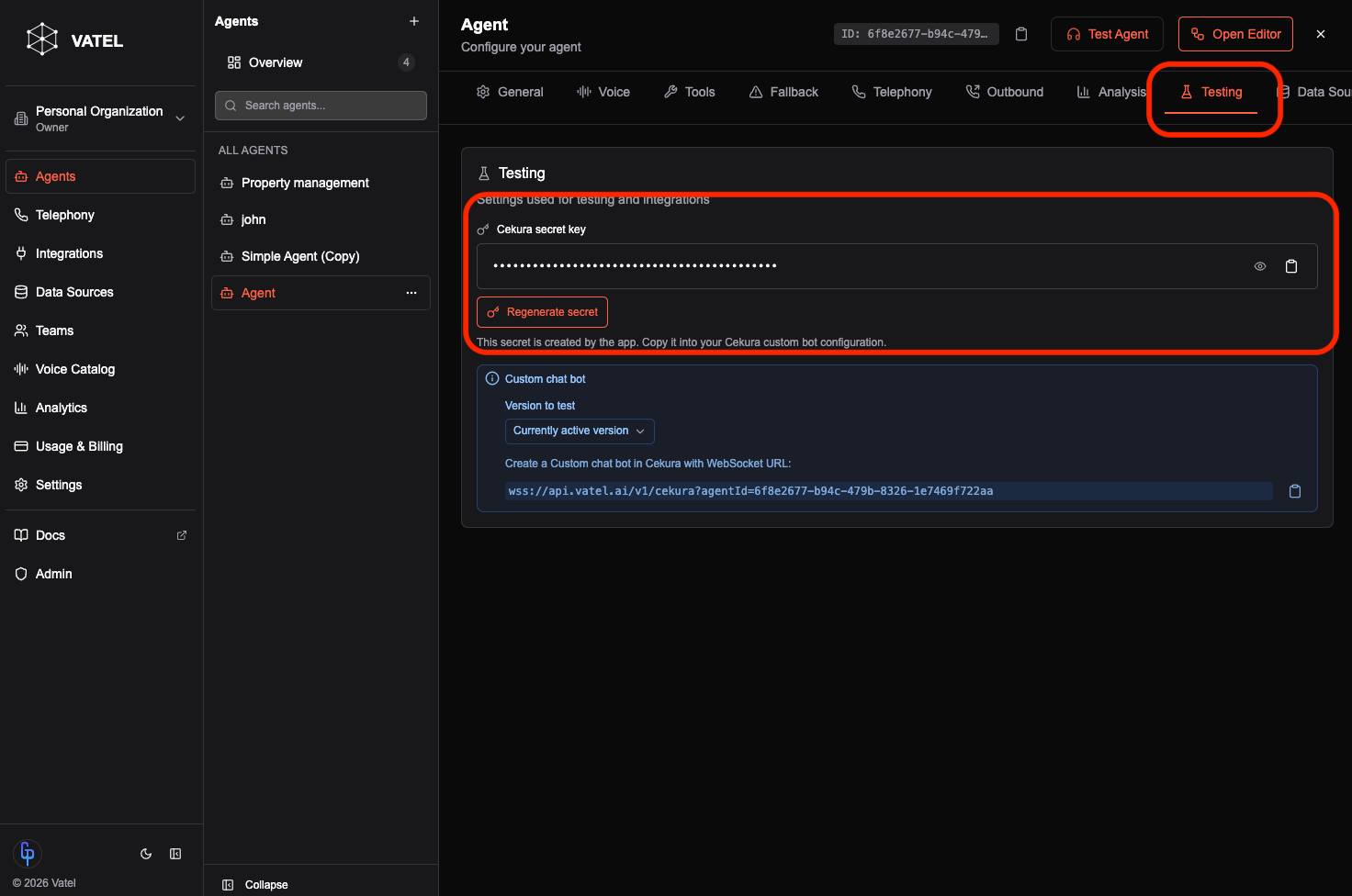
In **Vatel AI**, open the agent you want to evaluate and go to the **Testing** tab.
Generate a **secret** when prompted. You will paste this into Cekura later so Cekura can authenticate to your agent session.
 ## 2. Choose the agent, version, and WebSocket URL
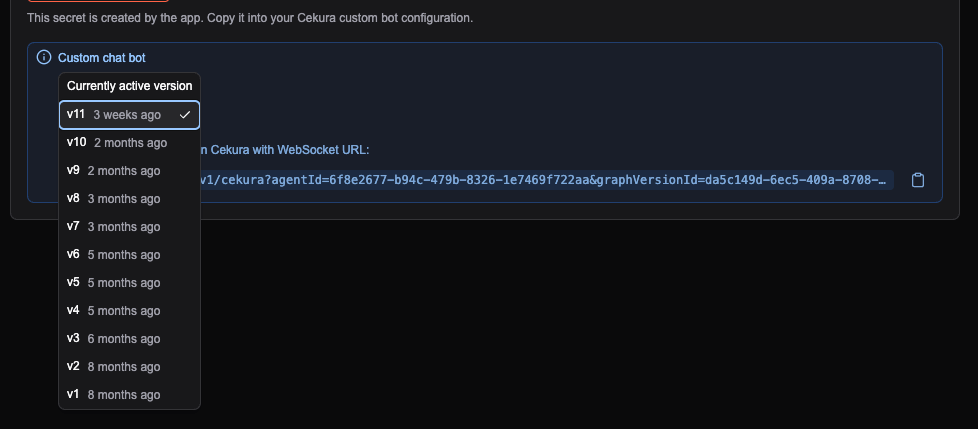
Pick the **agent** and **agent version** you want Cekura to talk to. If you leave the version empty, Vatel uses the appropriate default for that agent.
Copy the **WebSocket URL** shown here. Cekura connects to this endpoint for the chat session.
## 2. Choose the agent, version, and WebSocket URL
Pick the **agent** and **agent version** you want Cekura to talk to. If you leave the version empty, Vatel uses the appropriate default for that agent.
Copy the **WebSocket URL** shown here. Cekura connects to this endpoint for the chat session.
 Keep the **secret** from the previous step handy alongside this URL.
## 3. Create an agent in Cekura
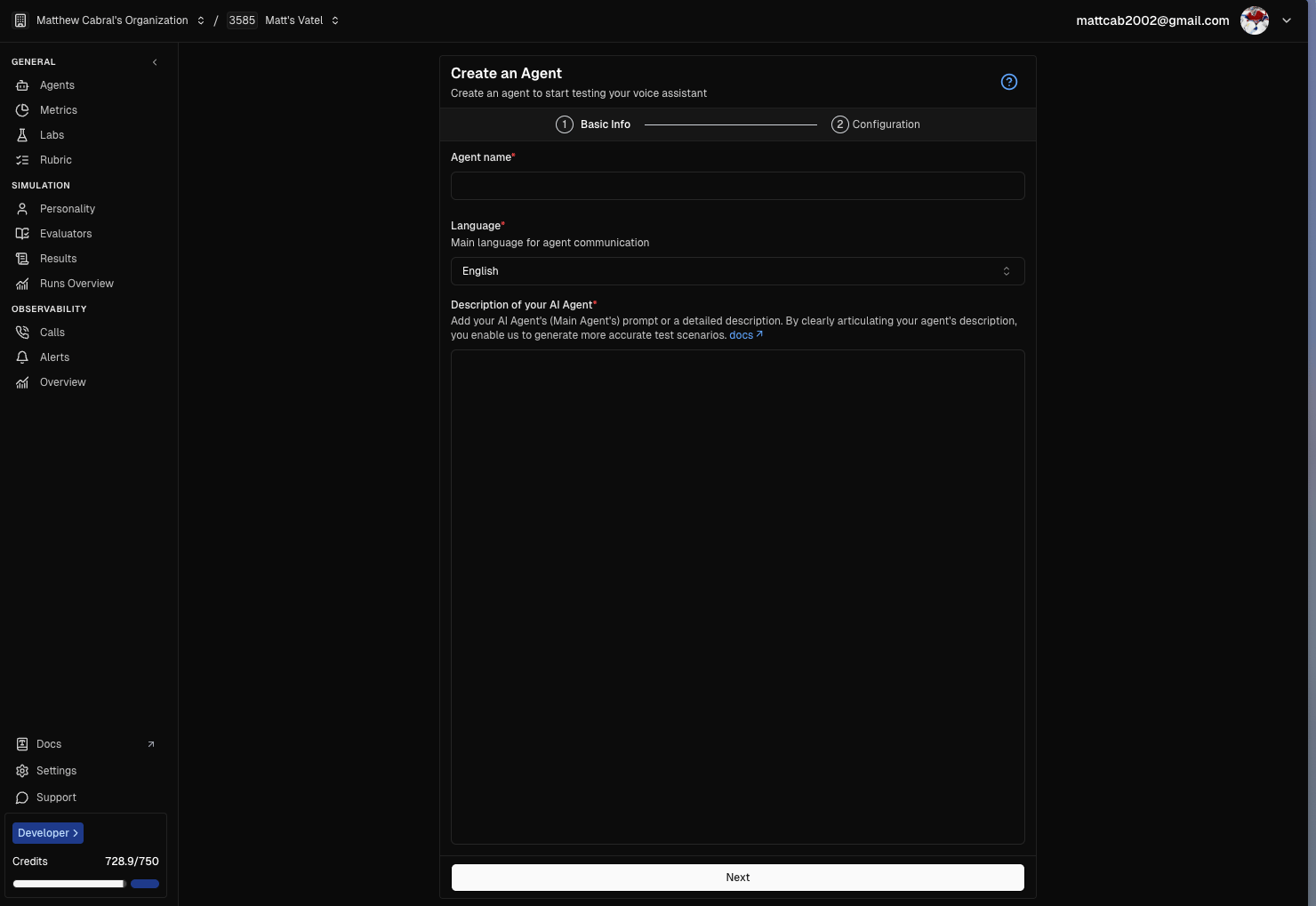
In **Cekura**, create a new **agent** that will represent this evaluation setup.
Keep the **secret** from the previous step handy alongside this URL.
## 3. Create an agent in Cekura
In **Cekura**, create a new **agent** that will represent this evaluation setup.
 ## 4. Configure the agent for chat
Open the agent’s configuration and set the channel to **chat** (or the chat bot mode Cekura exposes for text-based runs).
Under the **chat connection** settings, choose the **custom** provider and the **WebSocket** option. Then paste the **WebSocket URL** and **secret** from Vatel into the connection fields.
## 4. Configure the agent for chat
Open the agent’s configuration and set the channel to **chat** (or the chat bot mode Cekura exposes for text-based runs).
Under the **chat connection** settings, choose the **custom** provider and the **WebSocket** option. Then paste the **WebSocket URL** and **secret** from Vatel into the connection fields.
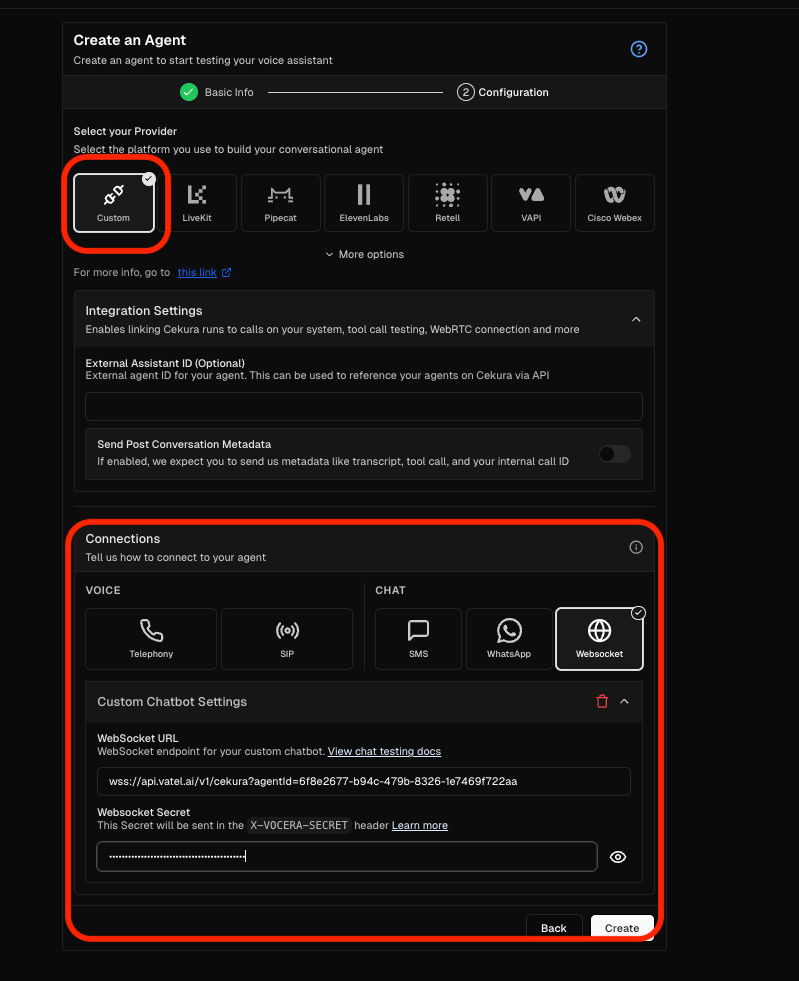 Save the configuration when you are done.
## 5. Run a chat evaluation
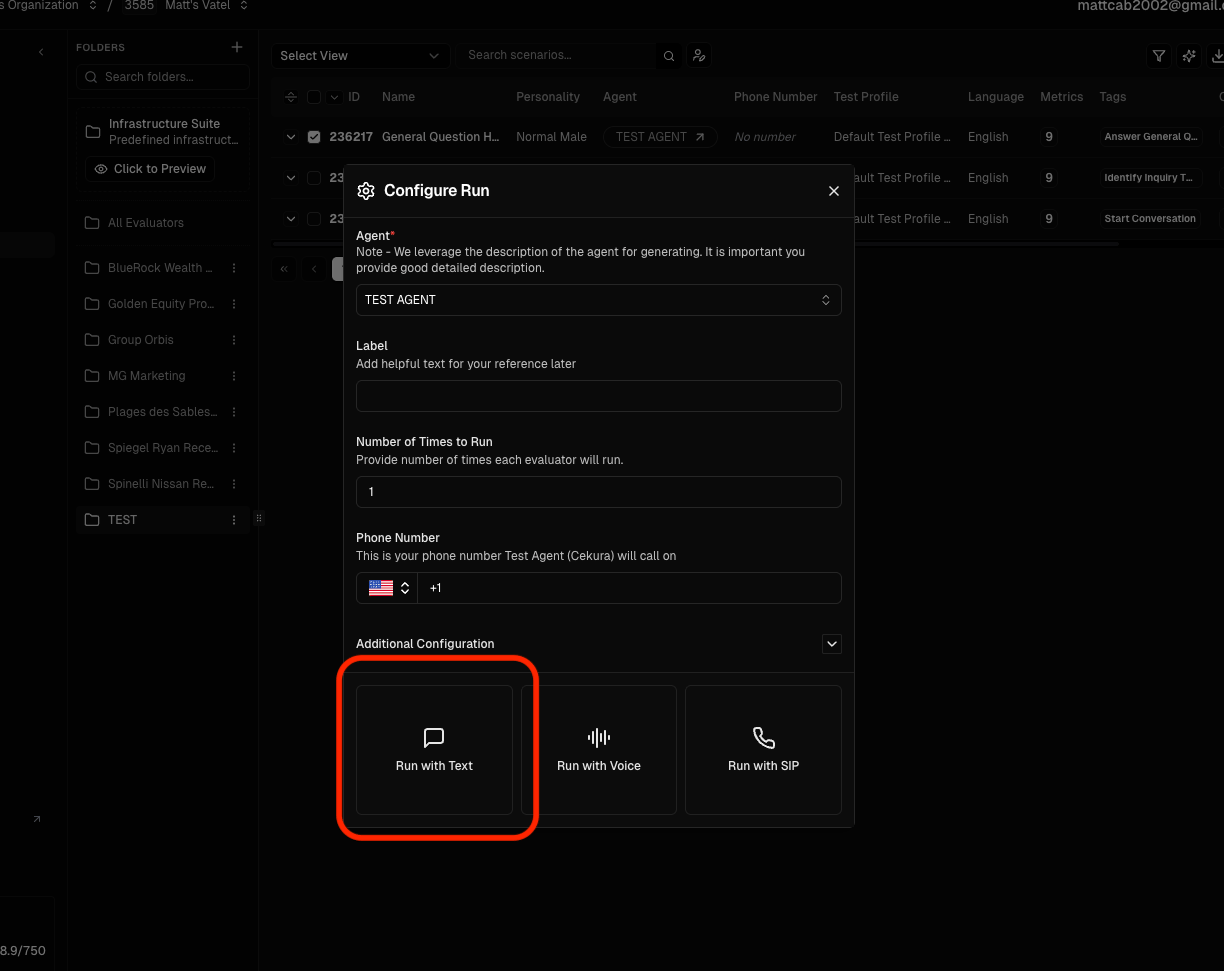
Start a **chat** evaluation run from Cekura so it opens a session against your Vatel agent using the URL and secret you configured.
Save the configuration when you are done.
## 5. Run a chat evaluation
Start a **chat** evaluation run from Cekura so it opens a session against your Vatel agent using the URL and secret you configured.
 ## 6. View the results
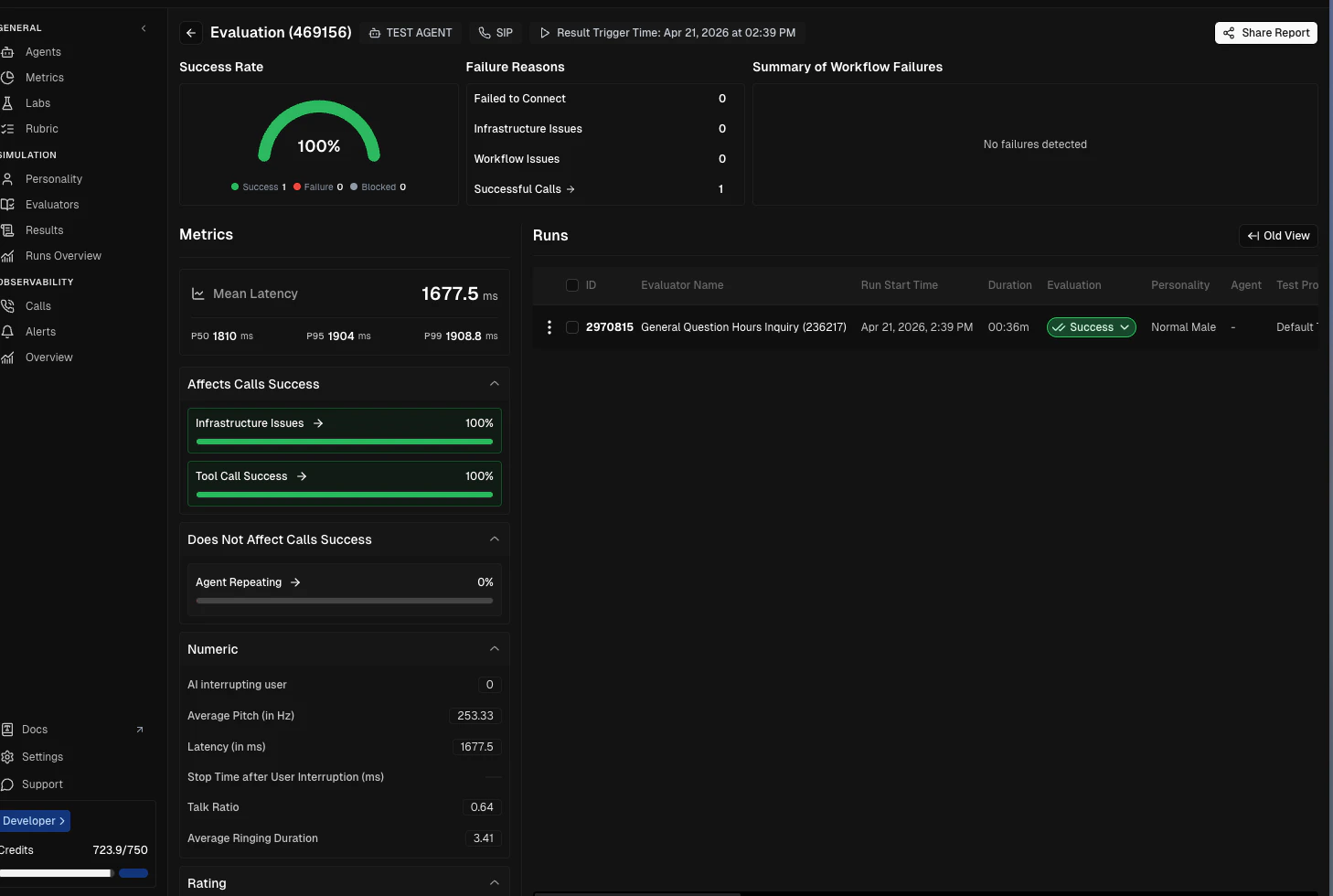
When the run finishes, open the results view in Cekura to see transcripts, outcomes, and any metrics Cekura surfaces for that chat test.
## 6. View the results
When the run finishes, open the results view in Cekura to see transcripts, outcomes, and any metrics Cekura surfaces for that chat test.