> ## Documentation Index
> Fetch the complete documentation index at: https://docs.vatel.ai/llms.txt
> Use this file to discover all available pages before exploring further.
# SIP Calls
> Point Cekura at a Vatel SIP trunk so it can place evaluation calls to your agent.
**Cekura** can run **voice** evaluations by placing SIP calls into **Vatel AI**. You create a **generic** SIP trunk with **digest** inbound credentials, assign the agent you want to test, then give Cekura the same **username**, **password**, and **SIP URI** so it can dial your agent.
A **SIP** evaluation is a **normal inbound call** into **Vatel AI** from the platform’s point of view: audio, telephony, and the full voice stack all run as they would for a live caller. Expect **full voice usage and billing**.
## 1. Create a generic SIP trunk with inbound credentials
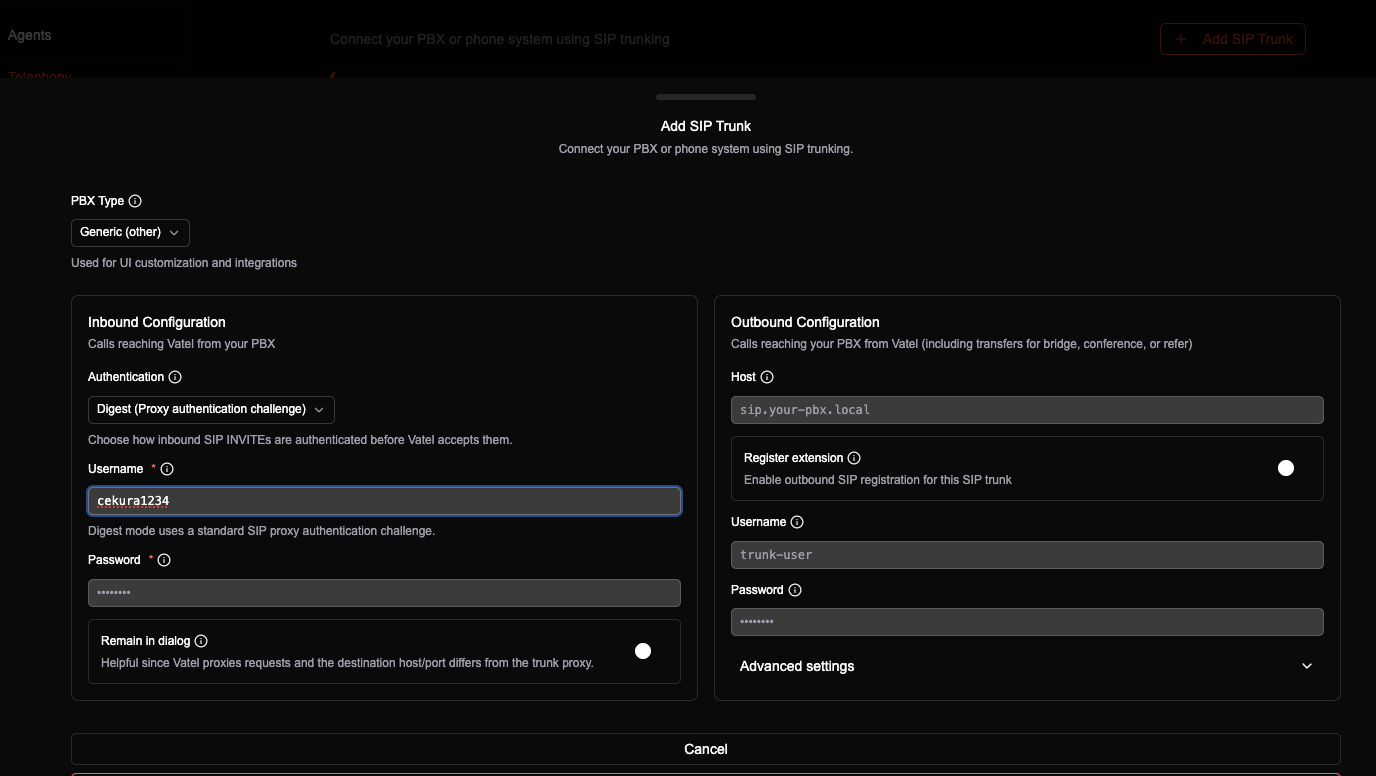
In **Vatel AI**, create a **SIP trunk** and choose the **Generic** PBX type so you get a standard trunk without a vendor-specific workflow.
Under **inbound** authentication, use **Digest** and set a **username** and **password**. Cekura will authenticate with these when it sends calls to your trunk.
You can leave **outbound** credentials unset (blank or “no credentials”) for this flow unless your environment specifically needs outbound authentication.
 ## 2. Assign an agent and copy the SIP URI
Add an **agent assignment** on the trunk and pick the **agent** you want Cekura to reach.
After the assignment is saved, copy the **SIP URI** shown for that assignment. This is the address Cekura should use as the destination for calls to that agent (for example **sip:(assignment-id)@sip.vatel.ai** or the value shown in your console).
## 2. Assign an agent and copy the SIP URI
Add an **agent assignment** on the trunk and pick the **agent** you want Cekura to reach.
After the assignment is saved, copy the **SIP URI** shown for that assignment. This is the address Cekura should use as the destination for calls to that agent (for example **sip:(assignment-id)@sip.vatel.ai** or the value shown in your console).
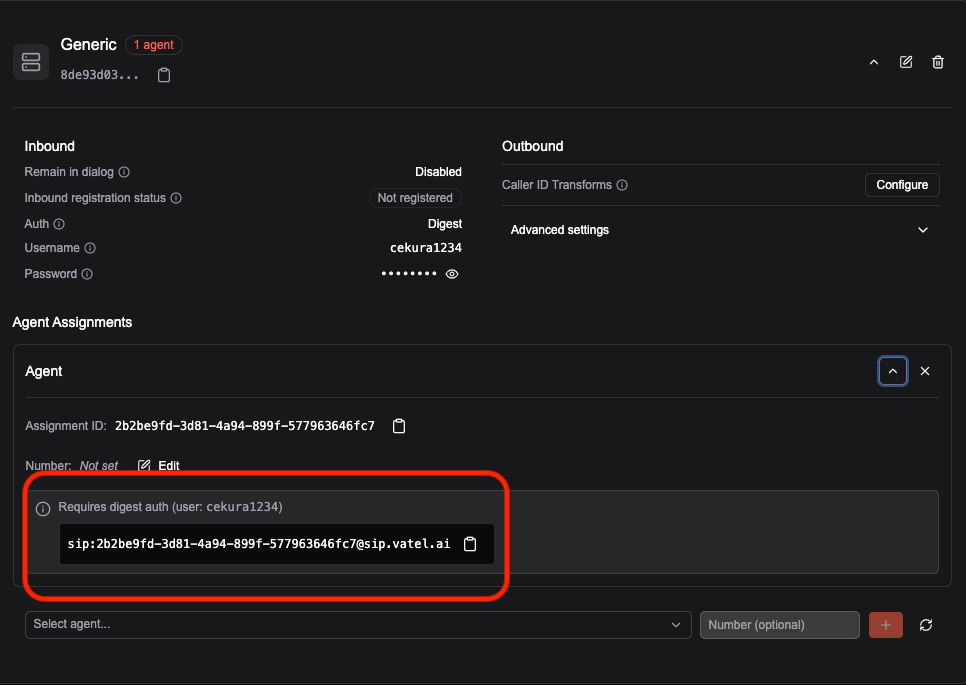 Keep the **username**, **password**, and **SIP URI** together; you will paste all three into Cekura.
## 3. Paste the trunk details into Cekura
In **Cekura**, open the evaluation agent that should place calls over SIP and go to the **SIP** / voice connection section.
Enter the **username**, **password**, and **SIP URI** from Vatel exactly as you copied them so Cekura registers or places calls against your trunk the same way your PBX would.
Keep the **username**, **password**, and **SIP URI** together; you will paste all three into Cekura.
## 3. Paste the trunk details into Cekura
In **Cekura**, open the evaluation agent that should place calls over SIP and go to the **SIP** / voice connection section.
Enter the **username**, **password**, and **SIP URI** from Vatel exactly as you copied them so Cekura registers or places calls against your trunk the same way your PBX would.
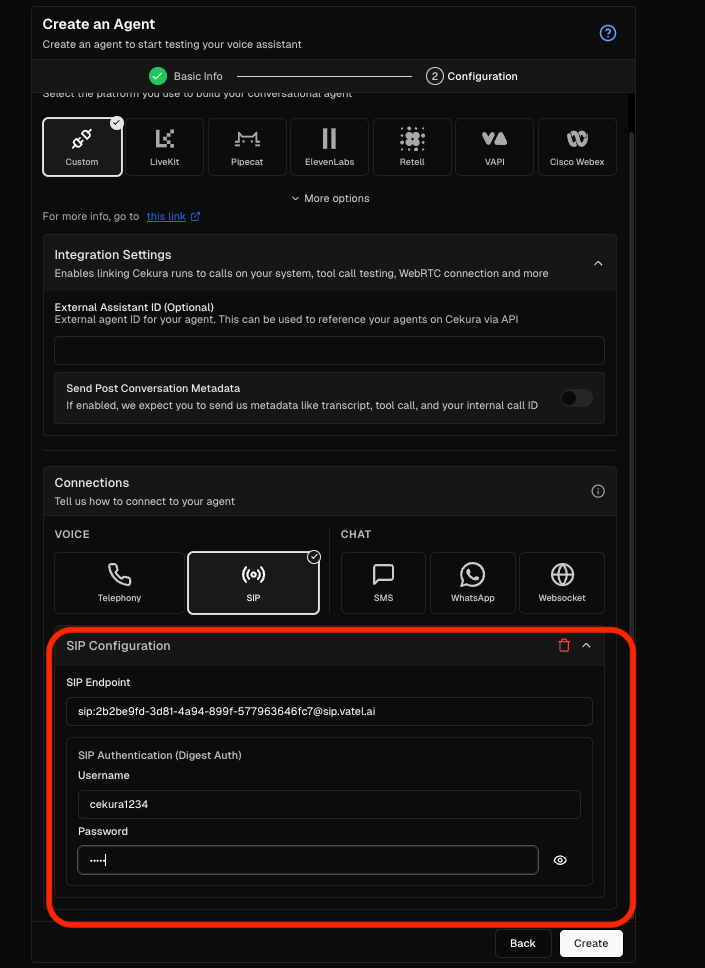 Save when finished.
## 4. Run a SIP evaluation
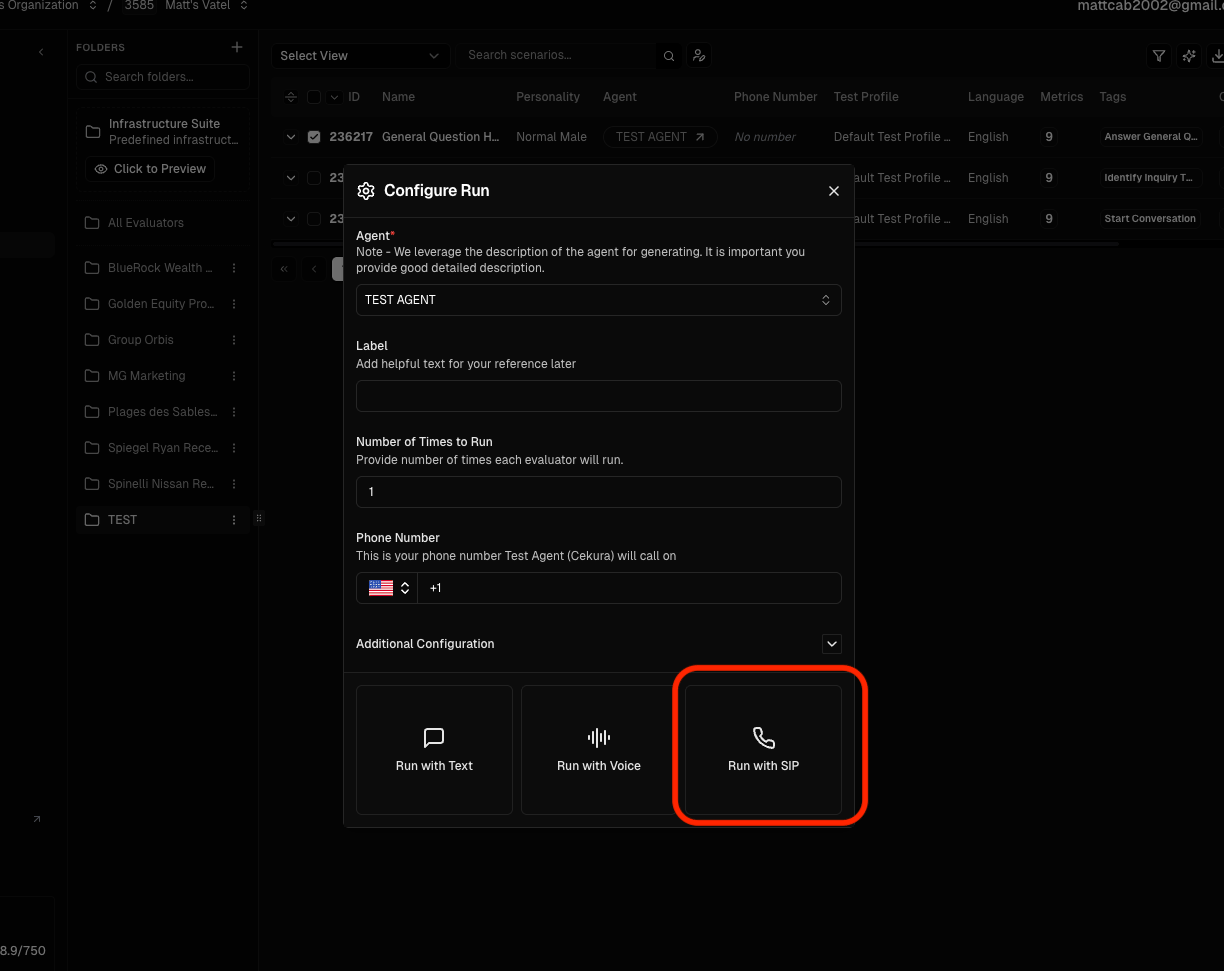
Start a **SIP** (voice) evaluation run in Cekura so it dials the URI using your trunk credentials and connects to the assigned Vatel agent.
Save when finished.
## 4. Run a SIP evaluation
Start a **SIP** (voice) evaluation run in Cekura so it dials the URI using your trunk credentials and connects to the assigned Vatel agent.
 ## 5. View the results
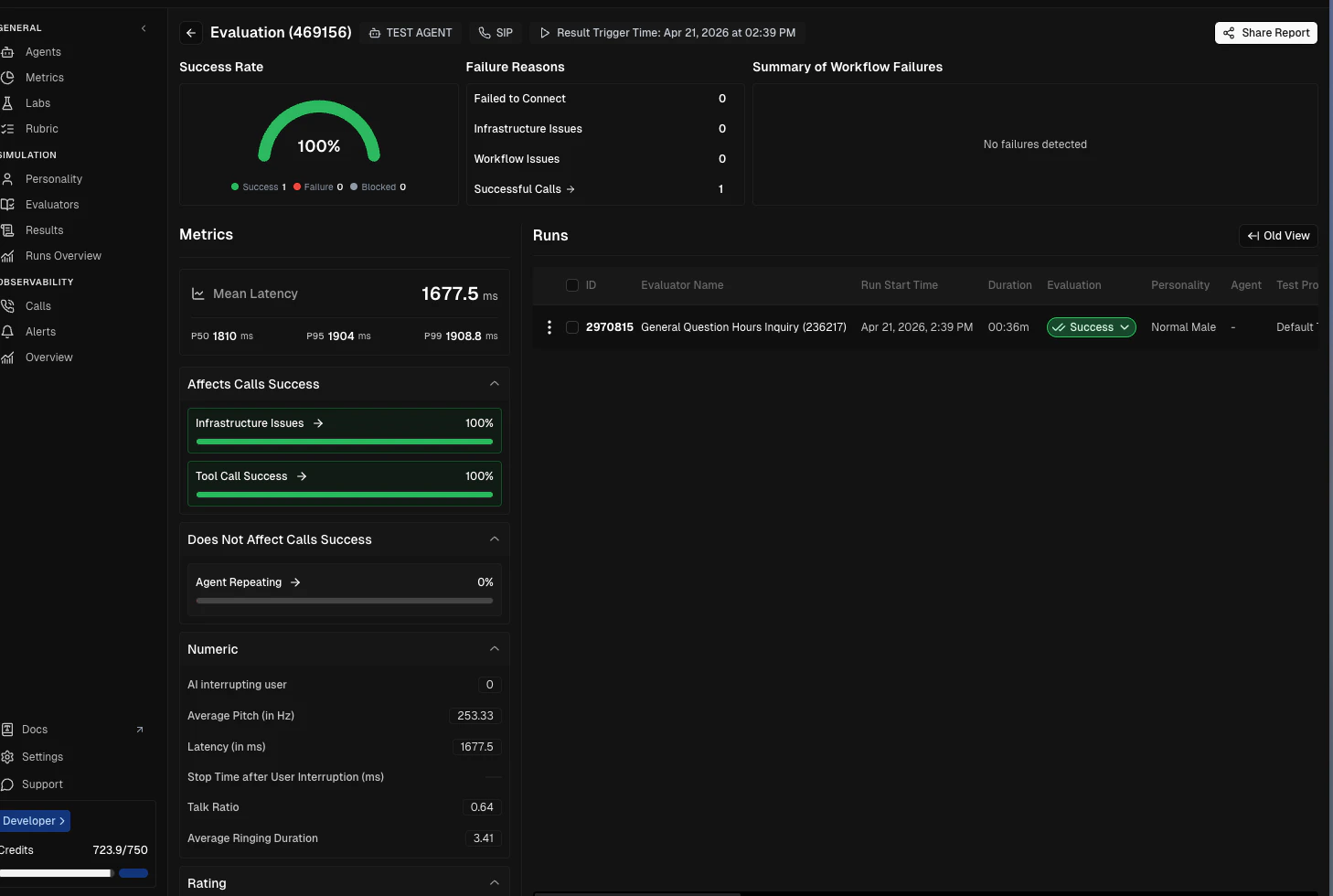
When the call completes, open Cekura’s results view to review audio, transcripts if available, and any evaluation output for that SIP run.
## 5. View the results
When the call completes, open Cekura’s results view to review audio, transcripts if available, and any evaluation output for that SIP run.