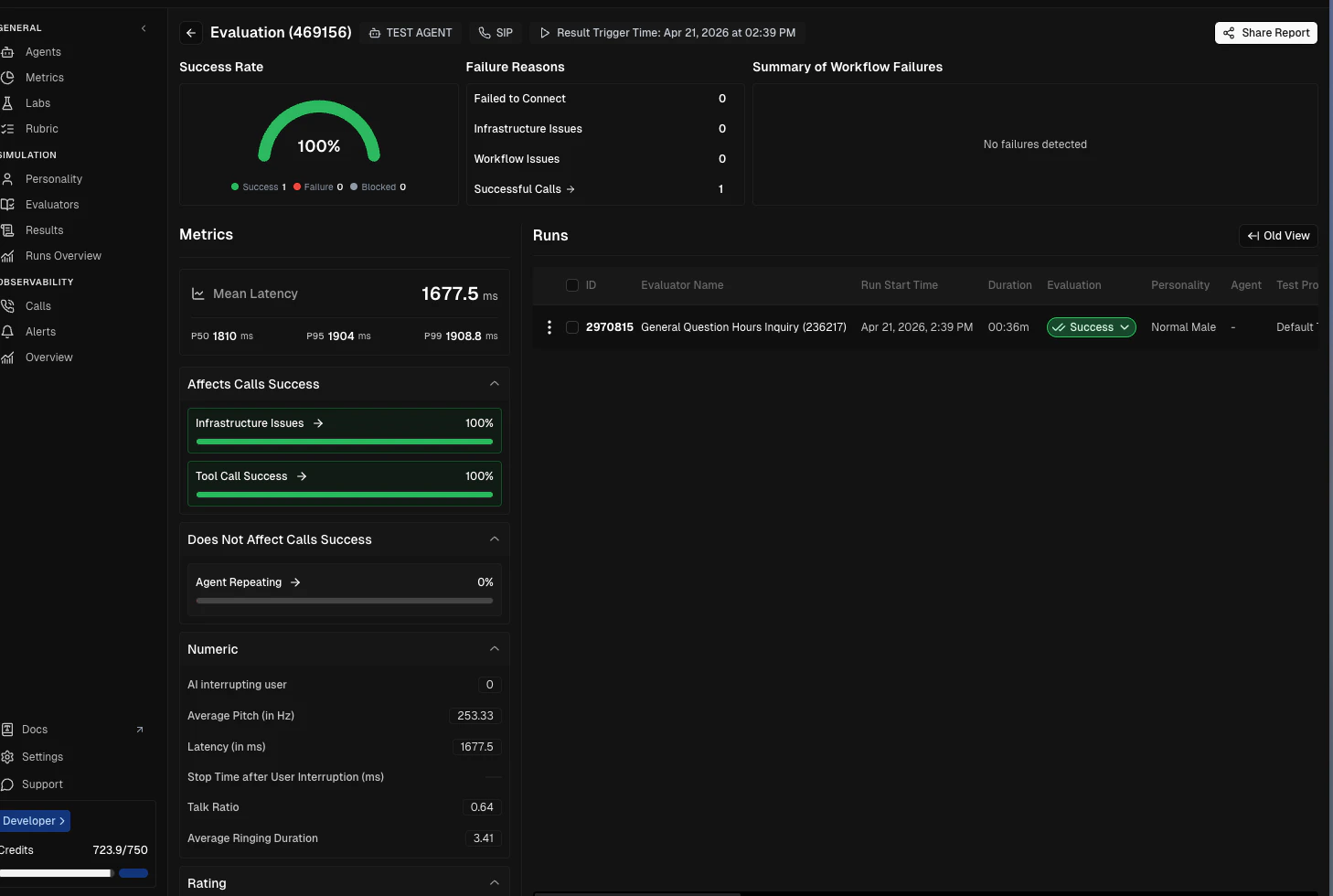

1. Open Testing on the agent in Vatel
In Vatel AI, open the agent you want to evaluate and go to the Testing tab. Generate a secret when prompted. You will paste this into Cekura later so Cekura can authenticate to your agent session.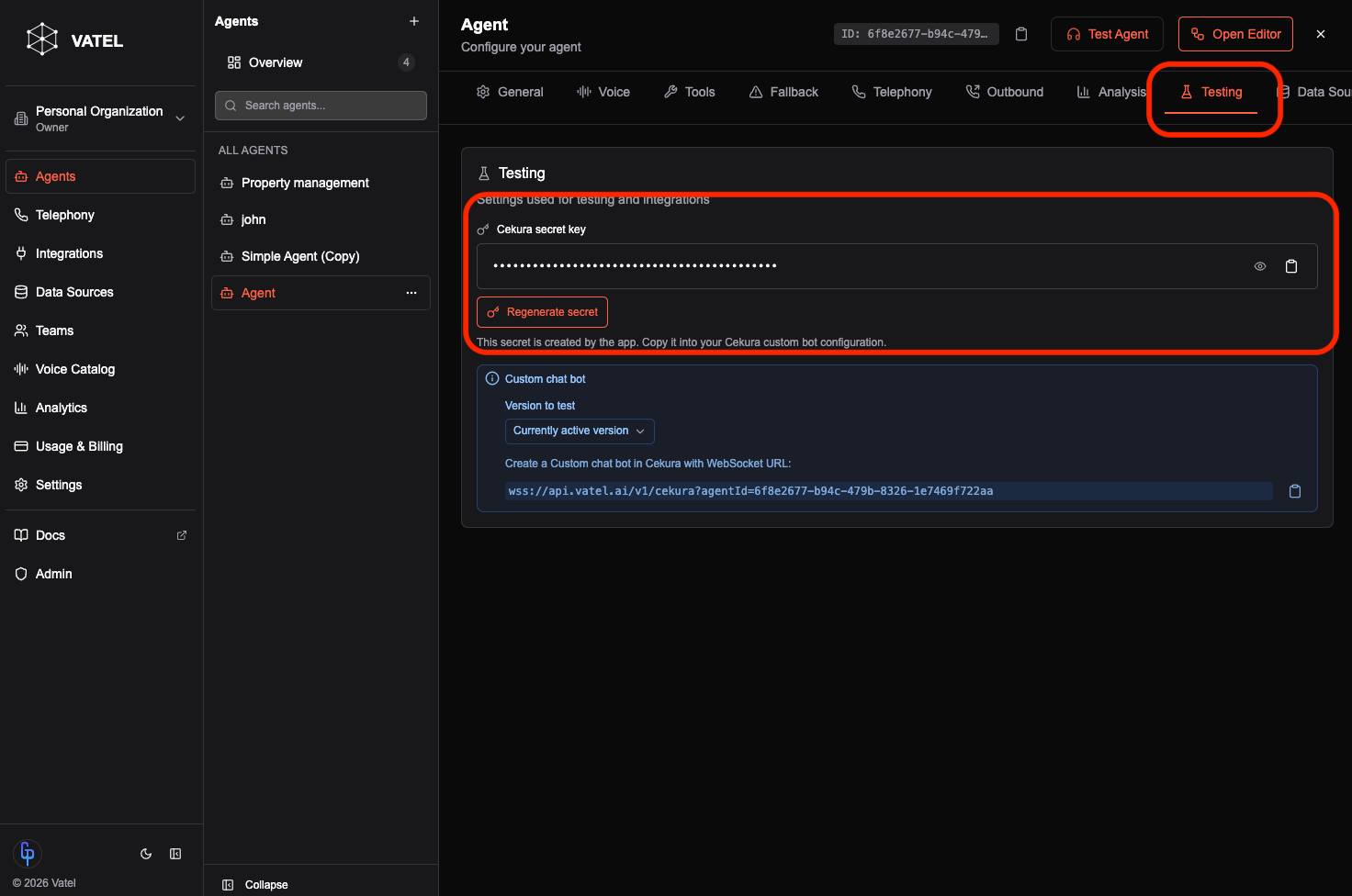
2. Choose the agent, version, and WebSocket URL
Pick the agent and agent version you want Cekura to talk to. If you leave the version empty, Vatel uses the appropriate default for that agent. Copy the WebSocket URL shown here. Cekura connects to this endpoint for the chat session.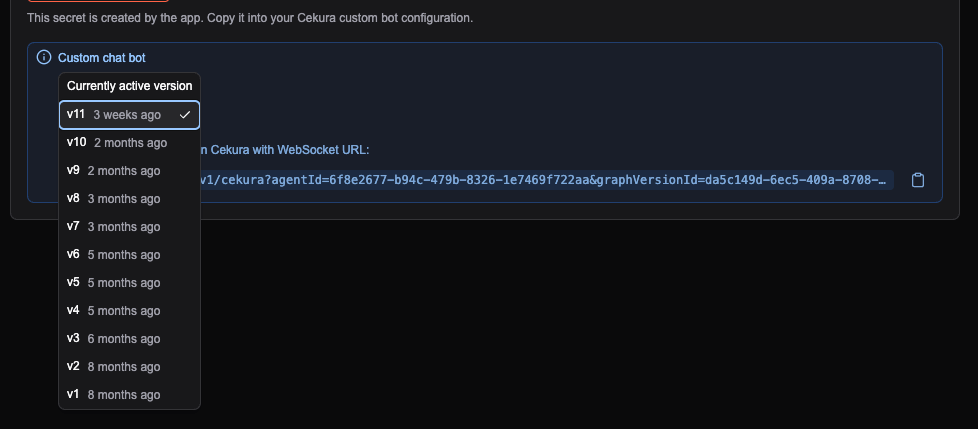
3. Create an agent in Cekura
In Cekura, create a new agent that will represent this evaluation setup.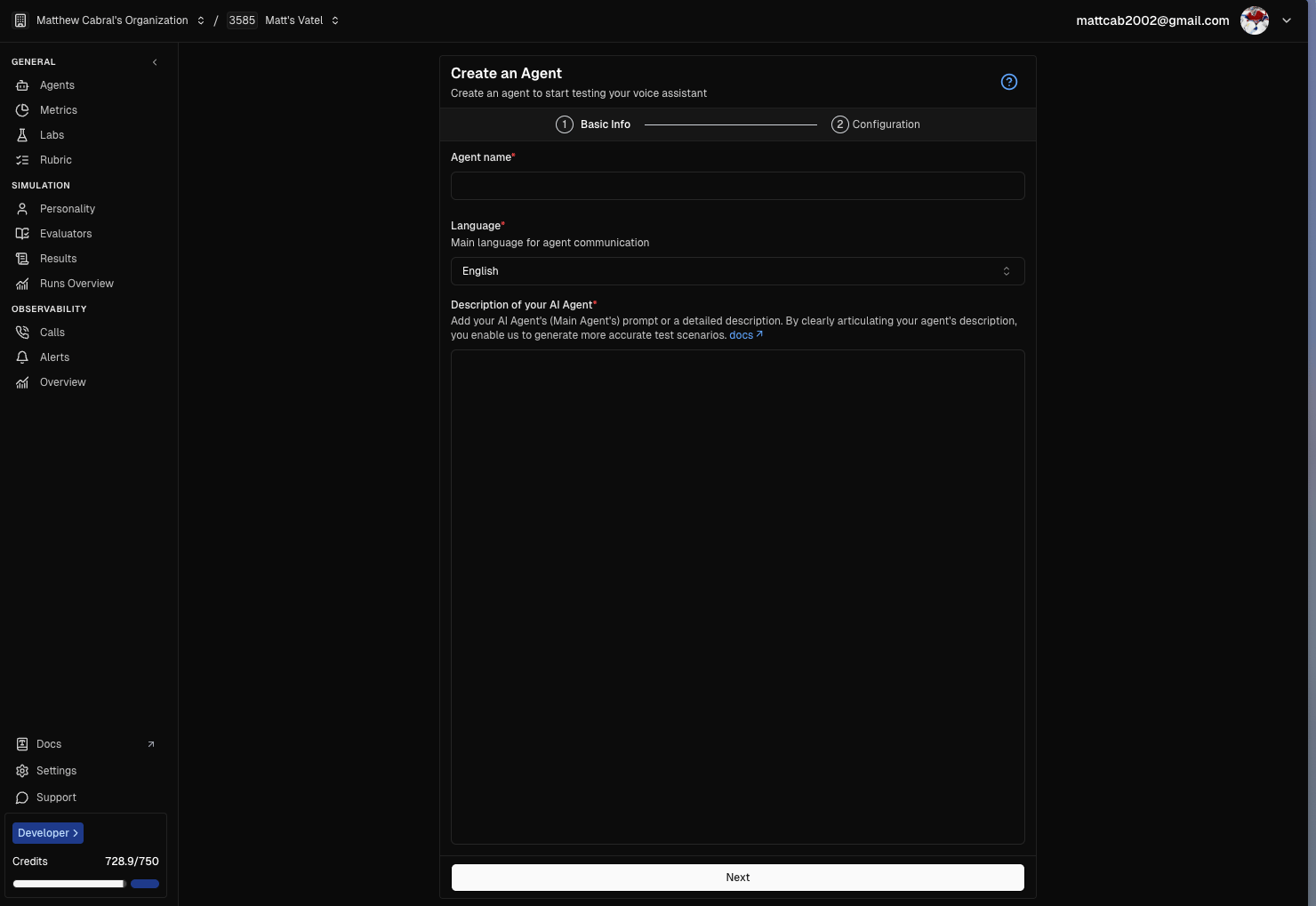
4. Configure the agent for chat
Open the agent’s configuration and set the channel to chat (or the chat bot mode Cekura exposes for text-based runs). Under the chat connection settings, choose the custom provider and the WebSocket option. Then paste the WebSocket URL and secret from Vatel into the connection fields.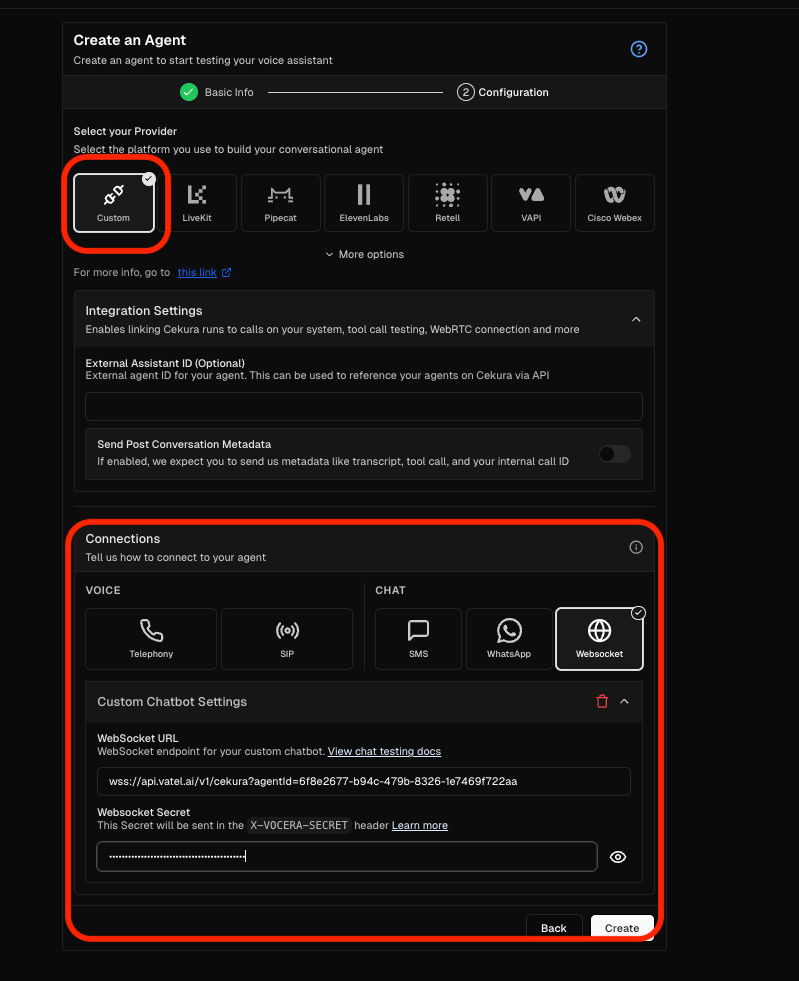
5. Run a chat evaluation
Start a chat evaluation run from Cekura so it opens a session against your Vatel agent using the URL and secret you configured.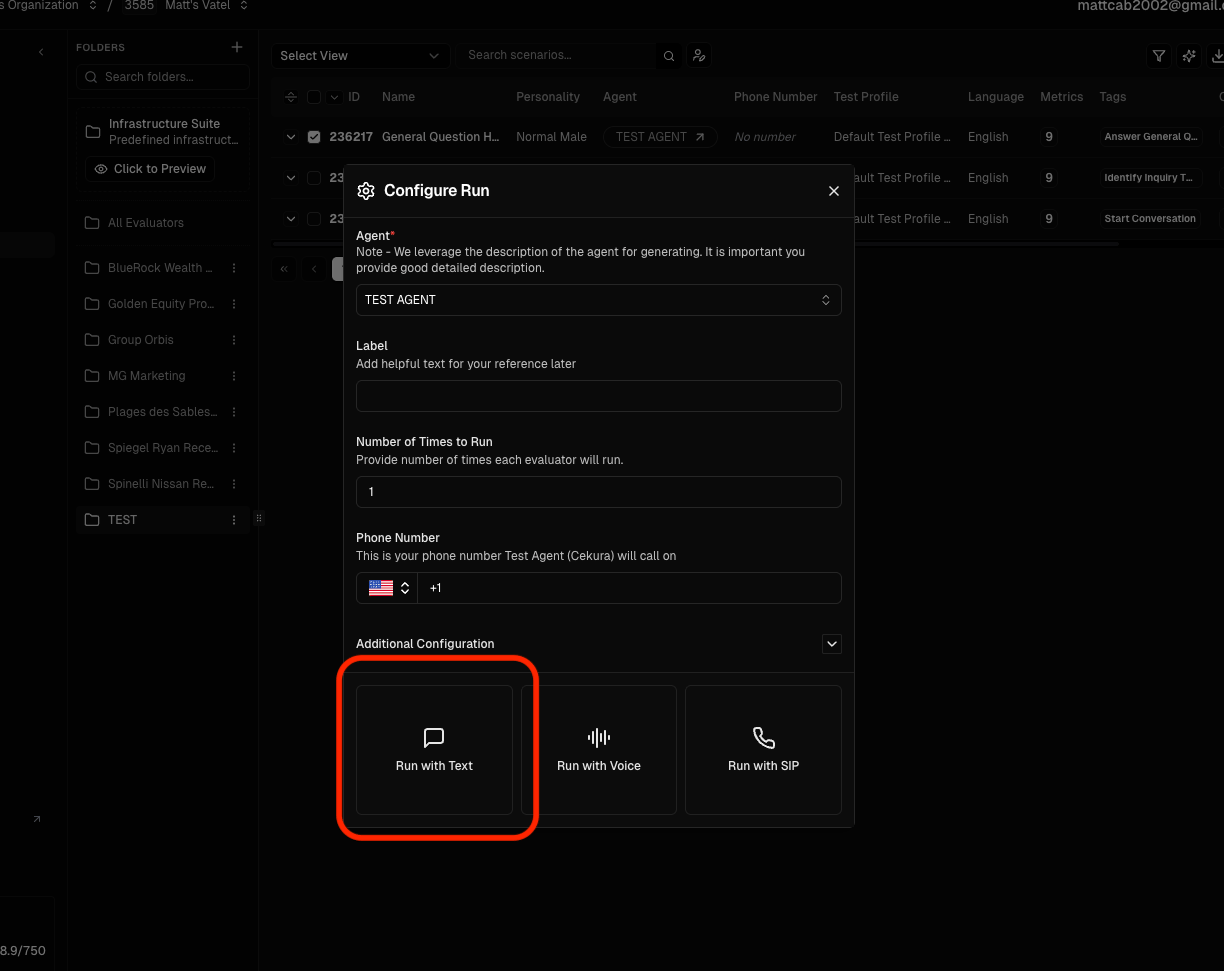
6. View the results
When the run finishes, open the results view in Cekura to see transcripts, outcomes, and any metrics Cekura surfaces for that chat test.