
Prerequisites
Before creating your first agent, make sure you are logged into the platform and have at least one valid organization.- User account - Verify you are logged in. See User Account if needed.
- Organization - Verify you have at least one organization. See Organization if needed.
1. Create an agent
From the dashboard, create your first agent.- From the Overview tab (Quick Actions) or Agents tab, click New Agent and give it a name.
- Once created you can duplicate, move to another organization, or delete the agent.
- Click Configure to open the agent editor and define logic and behavior.
2. Add company context
Your agent needs context to answer customer questions correctly.- Copy the context text you want (e.g. company overview, services, contact info).
- In Agent Settings, paste it into the Context box.
- Click Save.
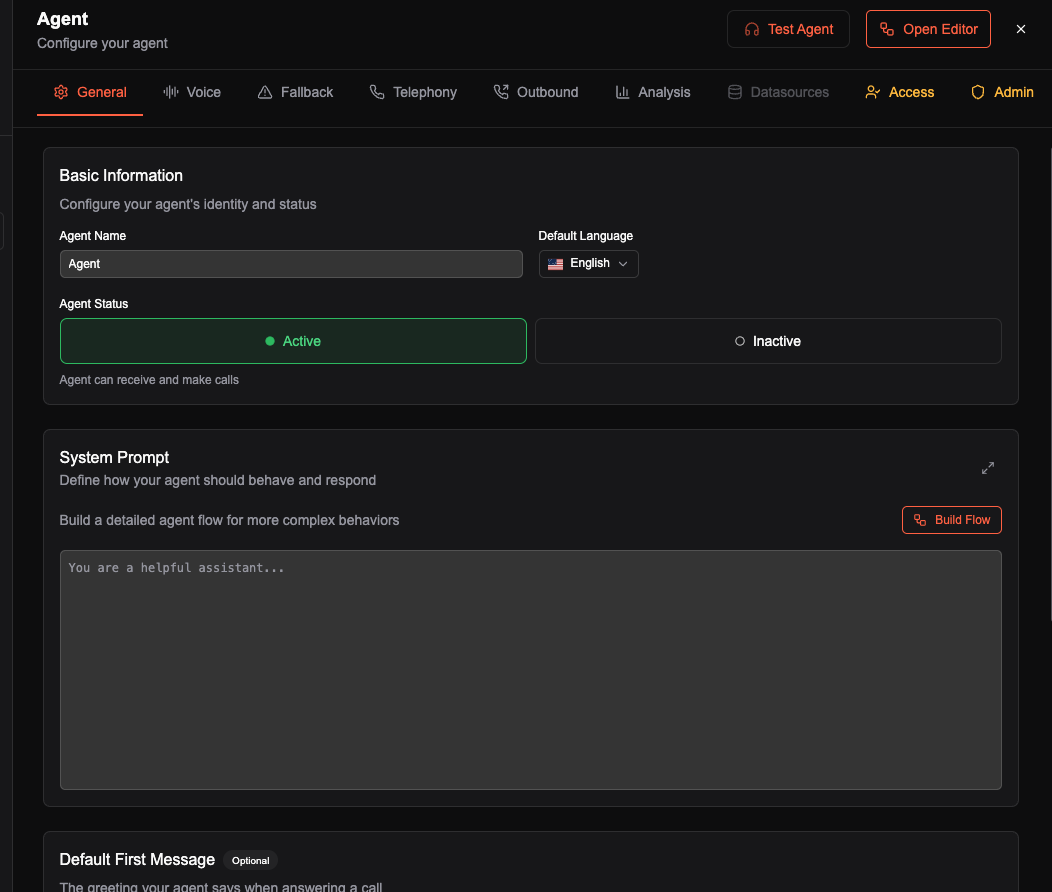
3. Agent Editor Introduction
The graph defines the agent’s behavior. Each node is an action or decision.- Welcome Message - What the agent says first (e.g. “Hi! Thank you for calling. How can I help?”).
- Conversation - Set a title (e.g. “General Questions”) and description that scopes the conversation.
- Transfer - Set When (e.g. “client requests to be transferred”), Phone Number, and Transfer Message.
- End - Set When (e.g. “client has no more requests”) and Message.
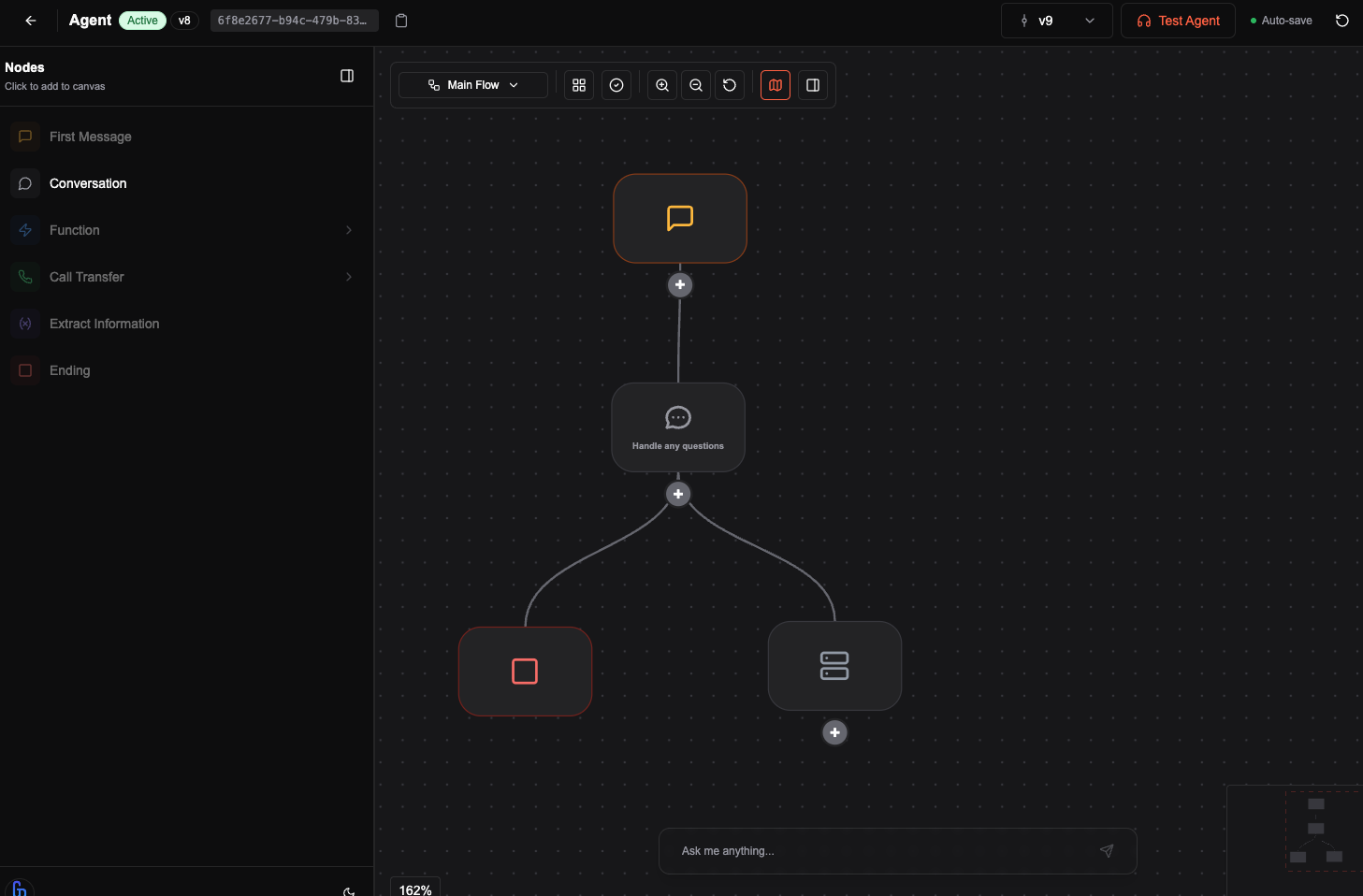
4. Test the agent
- Click Version: Draft → Create New Version.
- Click Test Agent → Start Conversation to simulate a call.
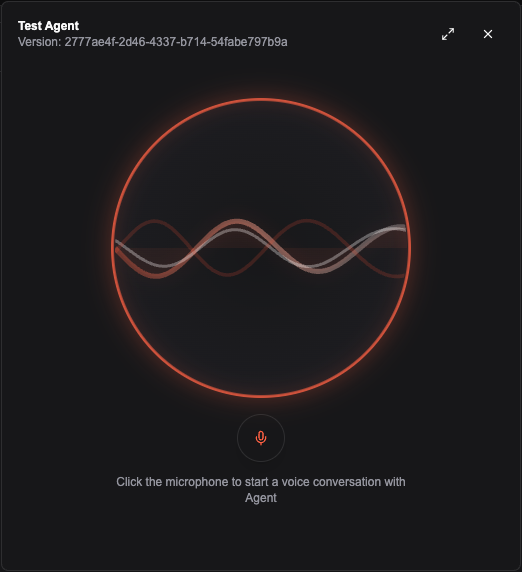
- Use Call History to review and analyze the call. See Call Analysis.
5. Deploy the agent
- Publish - In the agent editor, open Version, select the version (e.g. v1), click Publish then Set Active.
- Assign a number - In Settings → Call Settings, select a phone number you’ve added and click Assign.
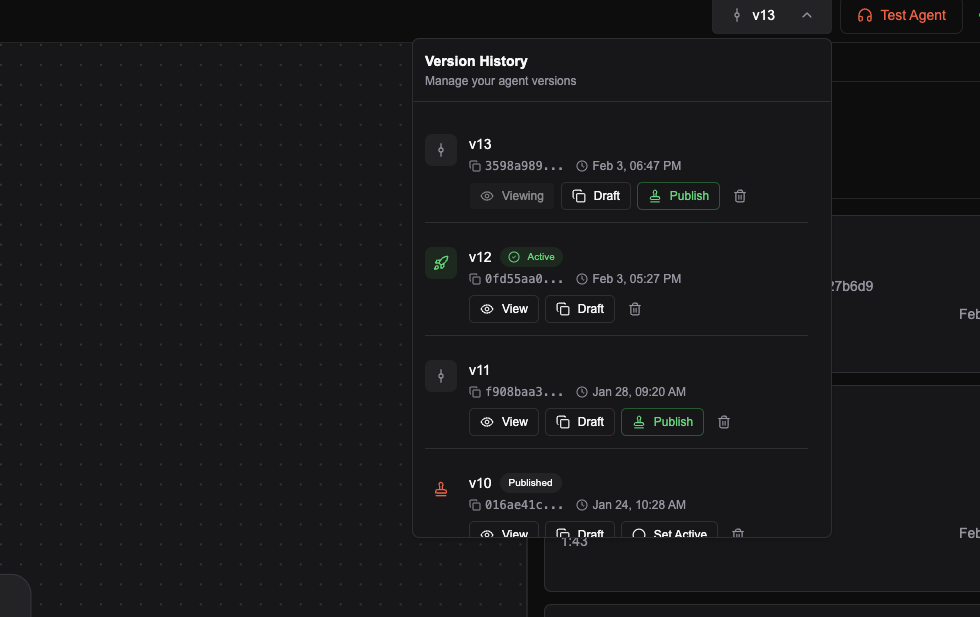

Congratulations. Your agent is in production and ready to receive real calls on the assigned number.
6. Add email sending (optional)
Add a email integration from the integrations page to send a summary after each call.At the time of writing, MailerSend, Resend and Sendgrid integrations are supported.
- In the agent, go to Go to End Flow in the graph editor.
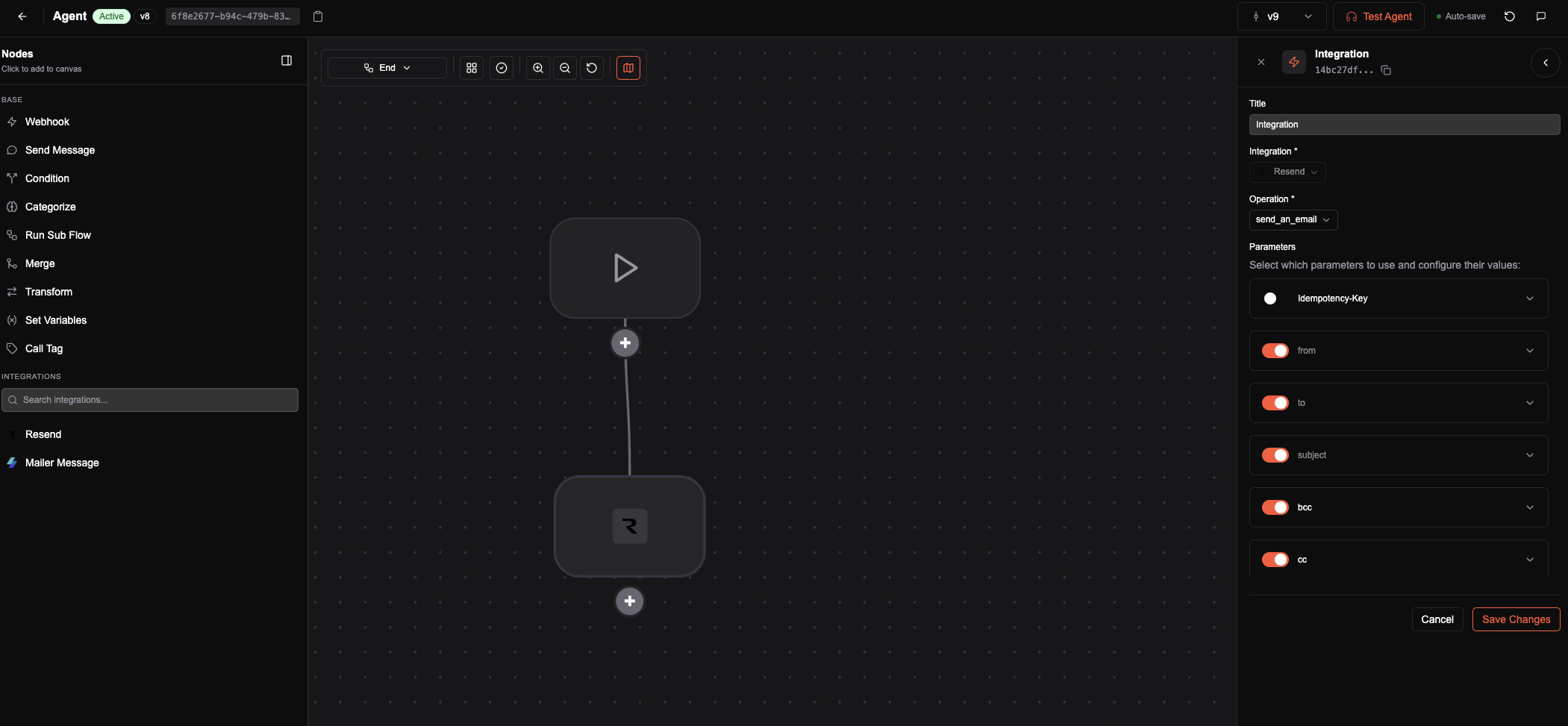
- Add a email integration from the integrations page and set Sender, Recipients, Subject, and Body (you can use system variables like
{{call_summary}},{{caller}},{{duration}}). - Enable call summary in Settings → Post-Call Analysis if you use
{{call_summary}}.