

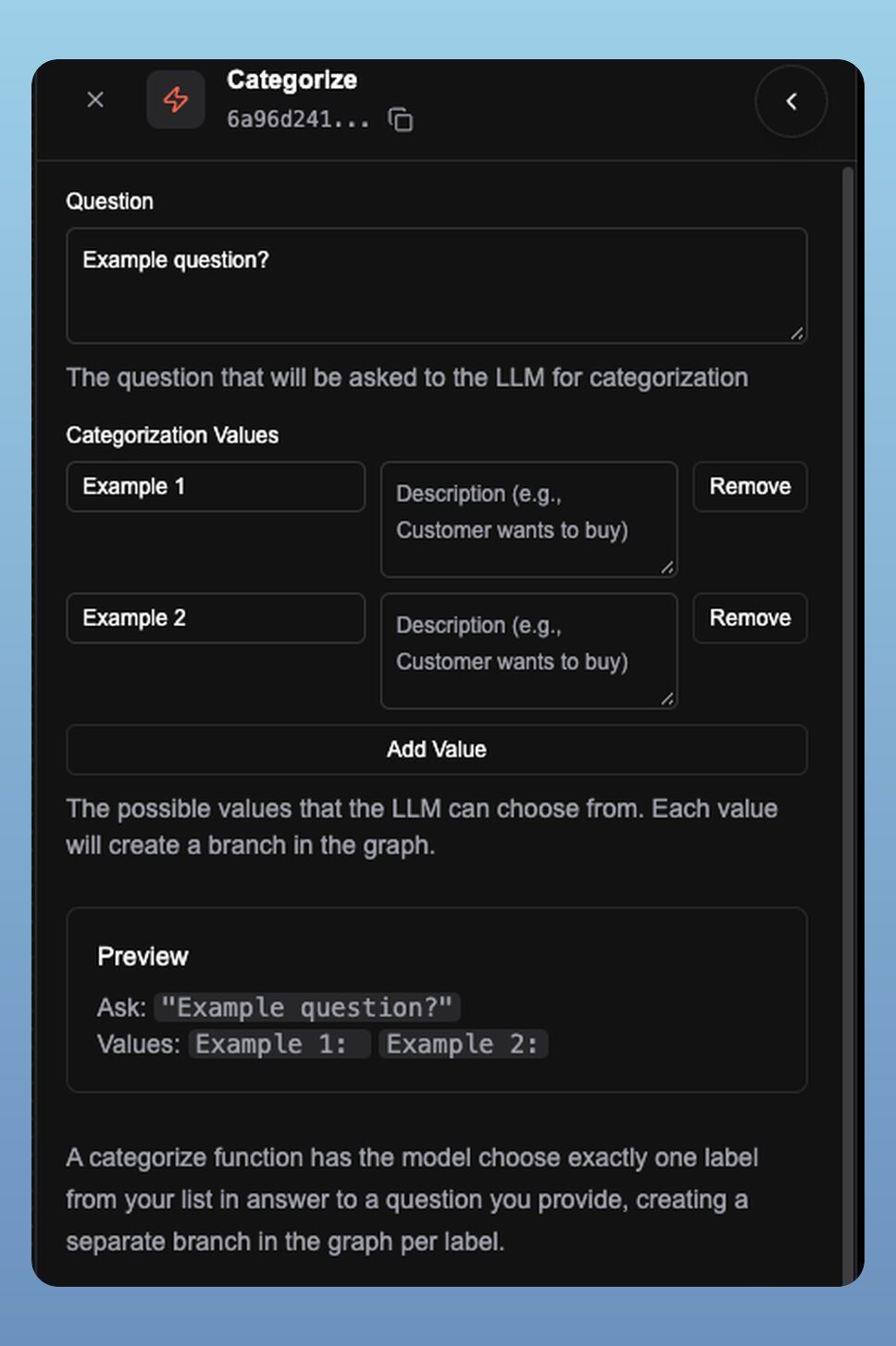
Categorize settings on a flow. The question is filled in, the values are Example 1 and Example 2, and the descriptions are still empty.
Fields
Question
The question or instruction that the AI model uses to decide which category applies. Think of this as the prompt you are giving the model. For example:- “What was the call about?”
- “What department should handle this request?”
- “Is the caller an existing customer or a new prospect?”
Categorization Values
This is the list of possible answers the model can choose from. Each row has two fields:- Value: A short label for this category (for example, “Sales”, “Support”, or “Billing”). This label also becomes the name of the branch in the visual editor, so keep it short and consistent. If you rename a value later, you will need to reconnect the edges in the graph.
- Description: A longer explanation that helps the model understand what this category means and when to pick it. For example, if the value is “Sales”, the description might be “The caller wants to learn about products, get a quote, or make a purchase.” Good descriptions are the key to accurate categorization. The more specific you are, the better the model can distinguish between similar categories.
Preview
Once you have filled in both the question and at least two values, the Preview section shows a summary of the categorization setup so you can verify everything looks correct. Until then, it displays: “Configure the categorization above to see a preview.”How categorization works
When the flow reaches this node, the AI model reads the conversation history, considers your question, and picks exactly one value from the list. The model scores each option and selects the best match. It will never invent a category that is not on your list. The chosen value is not stored in a variable. Instead, it determines which branch the flow follows next. Each value you define creates a separate outgoing path from this node. In the visual editor, you connect edges from the Categorize node to downstream nodes, and each edge is labeled with the value it corresponds to.Tips for writing good categories
- Make values distinct: If two categories overlap in meaning, the model may pick inconsistently. For example, “Technical Support” and “Help with Product” are too similar. Pick one.
- Write detailed descriptions: The description is the main signal the model uses to decide. “Customer wants to buy something” is much more helpful than leaving the description blank.
- Cover all cases: If a caller’s request does not match any category, the model still has to pick one. Consider adding a catch-all value like “Other” with a description of “None of the above categories apply” so you have a branch for unexpected requests.