
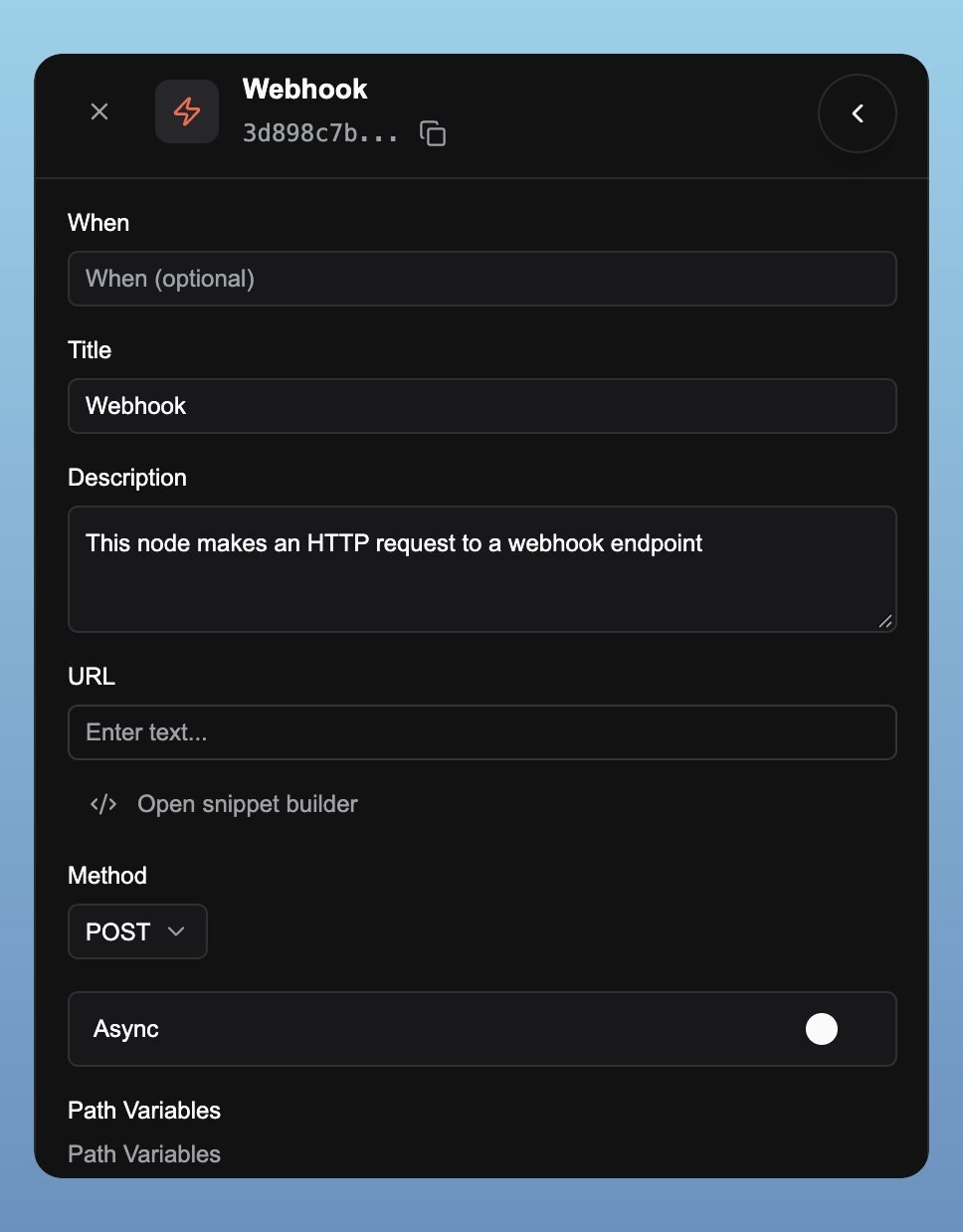
Webhook settings on the main flow. Method is POST, Async is off, and the URL is empty.
Fields
When this node is placed on the main conversation flow, the form starts with a When field. This is a natural-language instruction that tells the agent when to fire the webhook (for example, “after the caller provides their account number”). The node only runs when that condition is satisfied. In a Start, End, or sub flow, the When field is not shown because those flows run their nodes in a fixed order.Title
The label displayed on the node in the visual editor. Give it a name that describes the purpose of the request (for example, “Look up customer record” or “Create support ticket”).Description
A short explanation of what this HTTP request does. This text is visible to the AI model, so a clear description helps the agent understand why it is making the call and what it should do with the result.URL
The full URL of the endpoint you want to call (for example,https://api.example.com/v1/customers). If part of the URL changes from call to call, you can mark those segments as path variables instead of hardcoding them. See Path Variables below.
Method
The HTTP method for the request. Choose the one that matches what the external API expects:- GET: Retrieve data without changing anything (for example, looking up a customer record).
- POST: Send data to create a new resource (for example, submitting a support ticket).
- PUT: Replace an existing resource entirely with new data.
- PATCH: Update specific fields on an existing resource without replacing the whole thing.
- DELETE: Remove a resource.
Async
This toggle is only available when the node is on the main conversation flow. It controls whether the agent waits for the HTTP response or keeps talking while the request runs in the background.- Off (default): The agent pauses the conversation and waits for the response to come back before saying anything else. Use this when the agent needs the response data to continue the conversation (for example, looking up an account balance before telling the caller their balance).
- On: The agent continues talking to the caller while the HTTP request runs in the background. When the response arrives, the agent picks it up on its next conversational turn. Use this when the request might take a few seconds and you do not want dead air (for example, creating a record in a CRM while the agent wraps up the call).
Async message
This field only appears when Async is turned on. It controls what the model sees internally while waiting for the response. If you leave it blank, the system uses a default message:Tool call [tool name] is in progress. Its output will be available in the next turn. You can customize this if you want to give the model more specific context about what to say while it waits.
Path Variables
If your URL contains segments that change from call to call, you can define them as path variables. For example, if your URL ishttps://api.example.com/v1/customers/{customer_id}, you would add a path variable called customer_id and set its value to the appropriate variable or static value. Click Add Path Variable to add a new row. Each row has a name and a value, and the value can be typed directly or built using the snippet builder.
Headers
Custom HTTP headers sent with the request. Common uses include authentication tokens (for example,Authorization: Bearer {{api_token}}) and content type declarations. Click Add Header to add a new row. Each row has a name and a value.
Query Params
Query string parameters that get appended to the URL after a?. For example, adding a parameter named status with value active would produce ?status=active at the end of the URL. Click Add Query Parameter to add a new row.
Body
The payload sent with the request. This field only appears when the method is POST, PUT, or PATCH, since GET and DELETE requests do not carry a body. Write the body as JSON (or whatever format the target API expects). You can use variables inside the body by clicking Open snippet builder.What happens to the response
How the response is handled depends on where the Webhook node is placed and whether Async is on or off.On the main conversation flow
The response is automatically available to the agent’s AI model, so the agent can use the returned data in its next reply to the caller.- Async off: The agent pauses and waits for the response before generating its next turn. The caller hears silence (or a filler phrase, if configured) while the request completes.
- Async on: The request runs in the background. The agent keeps talking, and when the response arrives, the agent incorporates it into the next conversational turn.
Inside a flow (Start, End, or sub flow)
The response is available as an output of this node. You can reference it in later nodes using the syntax{{node.<id>.responseBody}}, where <id> is the identifier shown on the node in the editor. To access nested fields in the response JSON, add dots: for example, {{node.<id>.responseBody.customer.name}} retrieves the name field inside a customer object. You do not need to memorize this syntax. The Open snippet builder option under Node outputs will generate and insert the correct reference for you.