

{"name": "Jane", "phone": "555-1234", "issue": "leak in unit 4B"}. You can use a Transform node to assemble that exact shape by pulling name from one variable, phone from another, and issue from a third.
You can use the Transform node on Start, End, and any custom flow you have created. On the Main Flow, this option is greyed out and cannot be selected.
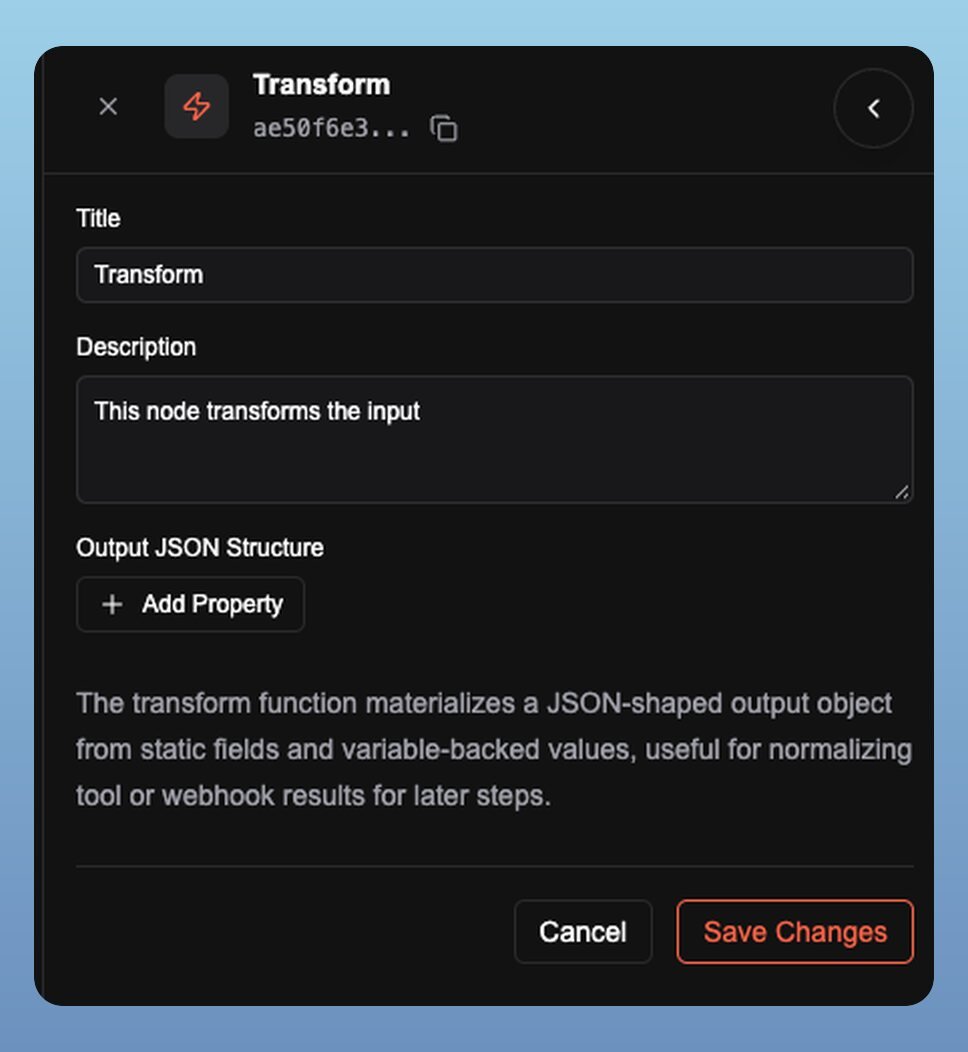
Transform settings on a flow. Output JSON Structure has no properties yet.
Fields
Building the output
The Output JSON Structure section is where you define the shape of the JSON object. It starts empty. Click Add Property to add a field. Each property has two parts:- Key is the field name in the output JSON (e.g.,
customer_name,phone,address). - Value is what goes into that field. You can type static text (a fixed string that is the same every time) or use a
{{variable}}reference to pull a value from the call. For example, setting the value to{{caller_name}}will insert whatever the caller’s name is for this particular call.
Referencing Transform output in other steps
After the Transform node runs, its output is available to any later step in the same flow. To reference a specific field from the output, open the snippet builder (the{{ }} button in any value field) and select Node outputs. From there, pick the Transform step and then the specific field inside its output.
The resulting reference follows this pattern: {{node.<step-id>.output.<field-name>}}. For nested objects, fields are separated by dots. For example, if your Transform step has the ID abc123 and produces an object with a customer property that contains a name field, the reference would be {{node.abc123.output.customer.name}}.