
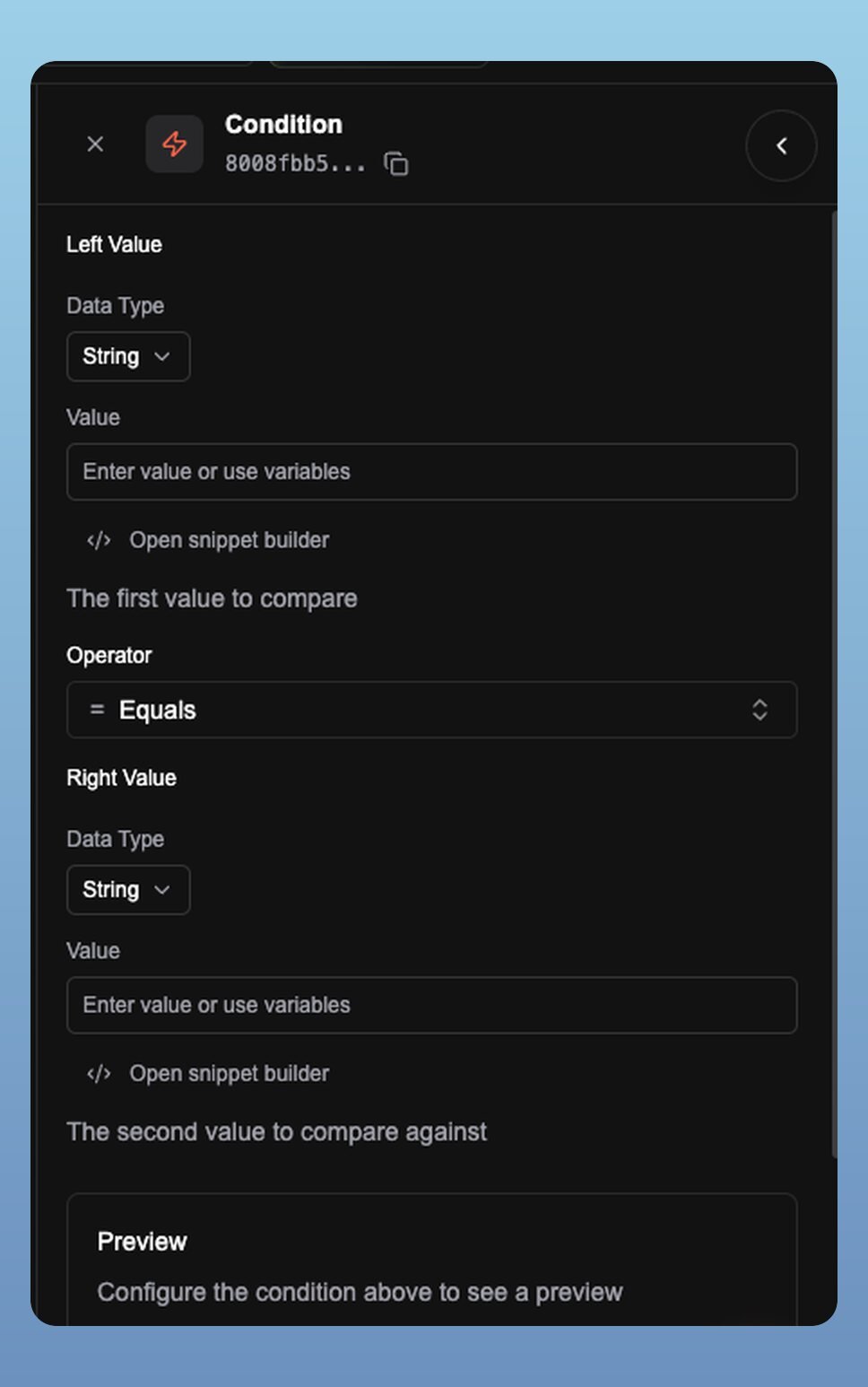
Condition settings on a flow. Both sides are strings, the values are empty, and the operator is Equals.
Fields
Left Value
The first side of the comparison. This is the value you want to test. It has two parts:- Data type: Choose the type that matches the data you are comparing. A new node defaults to String. Other options include Number, Boolean, and Date. Picking the correct type matters because it affects how the comparison works (for example, the number 10 is greater than 2, but the string “10” comes before “2” alphabetically).
- Value: The actual value to compare. You can type a value directly (for example,
active) or click Open snippet builder to insert a variable reference. Variables let you compare against data collected during the conversation or returned by an earlier node (for example, the status code from a webhook response).
Operator
The rule that determines how the left and right values are compared. A new node defaults to Equals. See the full list of operators below.Right Value
The second side of the comparison. This is the value you are comparing against. It works the same way as Left Value: pick a data type and enter a value or variable. This field is hidden when the operator does not need a second value. Specifically, it disappears for Is Empty, Is Not Empty, Is Null, and Is Not Null, since those operators only examine the left value by itself.Preview
Once you have filled in the required fields, the Preview section at the bottom of the form shows a human-readable summary of your condition (for example, “order_status Equals confirmed”). This helps you verify the logic before saving. Until the required fields are filled, it displays: “Configure the condition above to see a preview.” The Save button stays disabled until Left Value is set (and until Right Value is set, for operators that require two values).Operators
The operator dropdown is organized into groups based on the kind of comparison you want to make.Equality
- Equals: True when both values are identical. Use this for exact matches, like checking if a status is “confirmed”.
- Not Equals: True when the values are different. Use this to check that something is not a specific value, like filtering out “cancelled” orders.
Comparison
These work with numbers and produce the result you would expect from math class.- Greater Than: Left value is strictly larger than the right value.
- Less Than: Left value is strictly smaller than the right value.
- Greater Than or Equal: Left value is larger than or the same as the right value.
- Less Than or Equal: Left value is smaller than or the same as the right value.
Date and Time
- Is After: The left date occurs later than the right date. Use this to check if something is in the future or after a deadline.
- Is Before: The left date occurs earlier than the right date.
String
- Contains: True when the left string includes the right string anywhere inside it. For example, “customer support” contains “support”.
- Starts With: True when the left string begins with the right string.
- Ends With: True when the left string finishes with the right string.
Presence
- Is Empty: True when the left value is an empty string or has no content. Use this to check whether a field was filled in.
- Is Not Empty: True when the left value contains any content at all.
Null Check
- Is Null: True when the left value does not exist at all (not just empty, but completely absent). This is useful for checking whether an earlier node produced an output.
- Is Not Null: True when the left value exists, even if it is an empty string or zero.
How branching works
The form does not ask you to name the two paths. Instead, the graph assigns labels automatically when you connect edges from the Condition node:- The first edge you connect becomes the if path. The flow follows this path when the condition is true.
- The second edge you connect becomes the else path. The flow follows this path when the condition is false.