

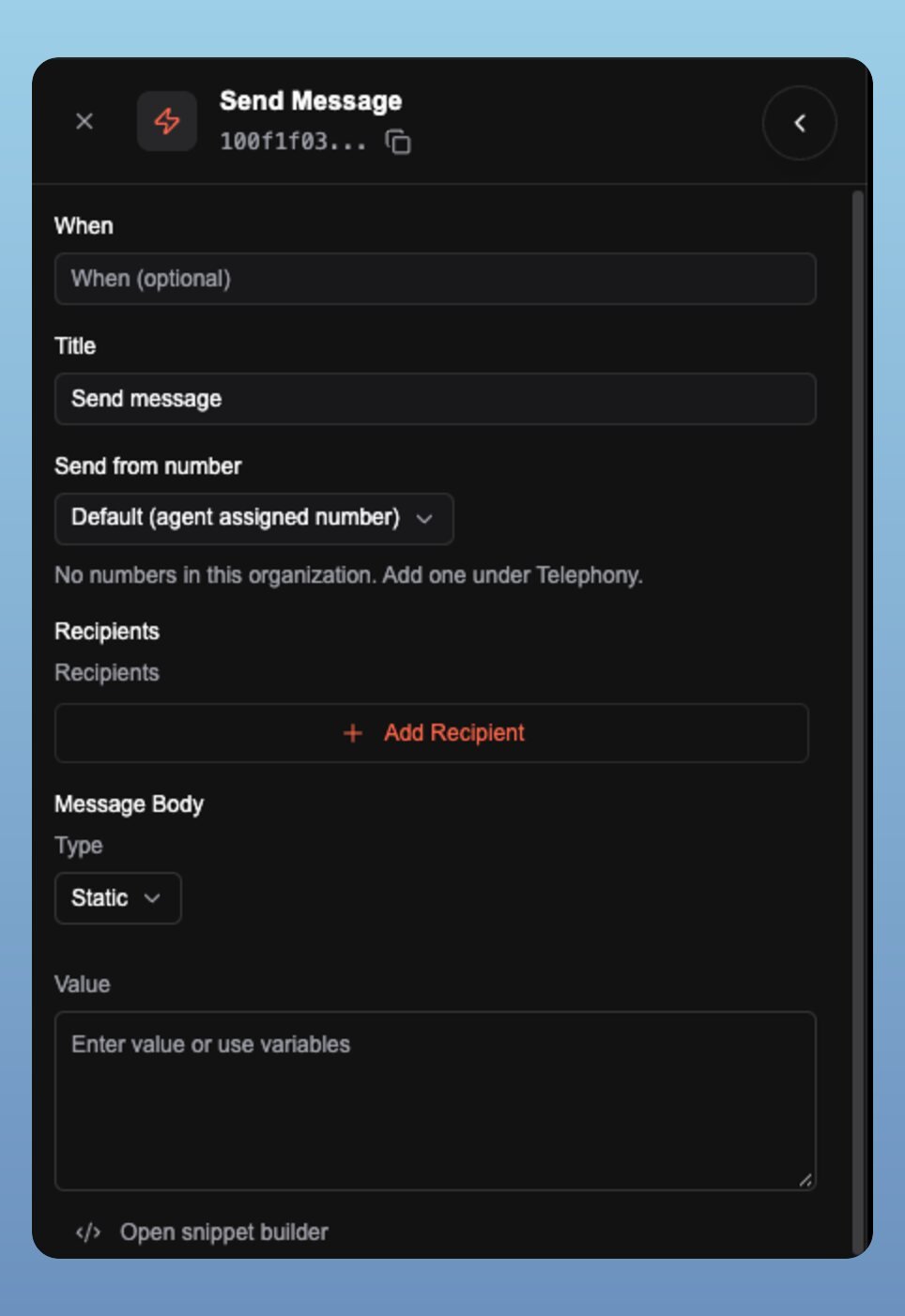
Send message settings. Send from number is the agent default, there are no organization numbers, and the message body type is Static.
Fields
When this node is placed on the main conversation flow, the form includes a When field that controls when the node runs. The When field is a natural-language instruction that tells the agent the circumstances under which it should fire this node (for example, “when the caller confirms their appointment”). When the node is placed inside a Start, End, or sub flow, the When field is not shown because those flows run their nodes in a fixed order.Title
The label displayed on the node in the visual editor. A newly created node defaults to “Send message”. Change it to something descriptive so you can identify the node at a glance (for example, “Send booking confirmation” or “Text receipt link”).Send from number
The phone number the text message will come from. You have two choices:- Default (agent assigned number): Uses whichever phone number is already assigned to this agent.
- An organization number: If your organization has purchased additional phone numbers and configured them under Telephony, they appear in this dropdown. Pick one if you want the text to come from a specific number (for example, a support line or a sales line).
Recipients
The list of phone numbers that will receive the text message. Each row is one destination number. Click Add Recipient to add a new row. For each recipient, you can either type a phone number directly or use a variable. For example, if you collected the caller’s phone number earlier in the conversation and stored it in a variable, you can reference that variable here by clicking Open snippet builder and selecting it. Every recipient receives the same message. The recipient does not have to be the person on the call. You could send a text to a manager, a dispatcher, or any other number. The person currently on the call receives the text when their number is listed here.Message Body
The message body has two parts: a type selector and a value field. The type selector controls how the message text is determined:- Static: You type the exact text that will be sent. What you write is what the recipient sees, word for word. This is the default and the right choice when the message content is predictable (for example, “Your appointment has been confirmed.”).
- Dynamic: You write a prompt or instruction, and the AI model generates the message text based on the conversation so far. Use this when the message needs to summarize or adapt to something that happened during the call (for example, “Summarize the order details discussed so far”).
Hi {{caller_name}}, your confirmation number is {{confirmation_id}}. The snippet builder helps you find and insert the correct variable reference without having to remember the exact syntax.